








Verification Tool
Updated: 08/26/2025
We distribute a tool to verify the safety of MOC3 files.
Please click the button below to download the latest version.
Download
Please visit the following page to download the file.
Download Cubism MOC3 Consistency Checker
Please feel free to contact the community regarding any problems or requests.
MOC3 Consistency Checker
By loading a MOC3 file into this tool, you can determine that the file is in the correct format.
It is also possible to determine that the file has been illegally modified.
For details on how to use the system, please refer to “How to Use” below.
Update history
ver.1.00.04 (08/26/2025)
- Cubism 5.3 models are now supported.
ver.1.00.03 (08/17/2023)
- Cubism 5.0 models are now supported.
ver.1.00.02 (03/16/2023)
- Fixed a bug that caused some models using the limit settings for blend shape weights to be identified as “Corrupted” even though the MOC3 file was in the correct format.
- Fixed a bug that could cause the application to crash when loading an MOC3 file that was not in the correct format.
ver.1.00.01 (03/10/2023)
- Fixed a bug that caused the clipping mask to be identified as “Corrupted” when there was no reference to the clipping mask.
- Support has been added so that warnings by Microsoft Defender SmartScreen are no longer generated.
- [Mac] MOC3_Consistency_Checker is now available.
ver.1.00.00 (03/09/2023)
- [Windows] MOC3 Consistency Checker is now available.
How to Use
(1) For Windows version, start “MOC3ConsistencyChecker.exe.”
For Mac version, start “MOC3_Consistency_Checker.app.”
(2) Click the [[1] Select MOC3 Files or folder] button at the top of the window.
Select the MOC3 file you wish to verify or the folder containing the file in question.

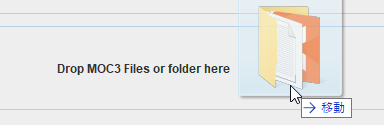
You can also load files by dragging and dropping them into the space at the bottom of the window.
The loaded MOC3 file is displayed in [Check targets] in the center of the window.
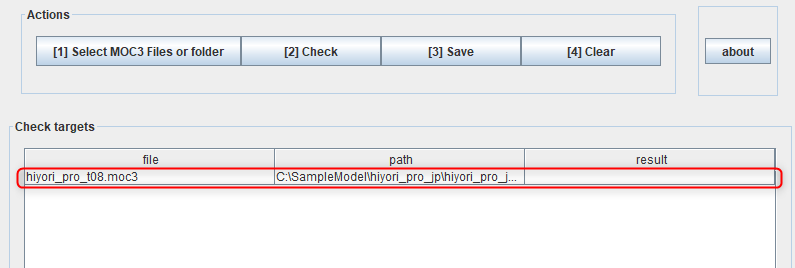
Note: If the folder to be dragged and dropped contains many files, it may take some time before it is displayed.
(3) Verify the MOC3 file loaded.
Click the [[2] Check] button.

Verification results can be viewed in [result].
[OK] is displayed if the file is OK, and [Corrupted] if there is something wrong with the file.
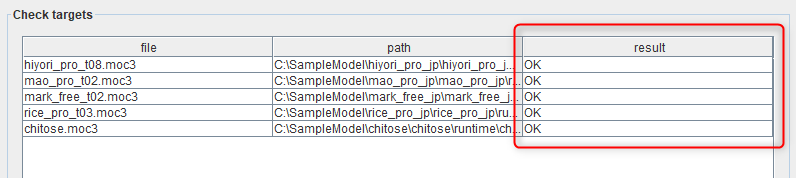
(4) Verification results can be saved as a text file.
Click the [[3] Save] button to save the file.

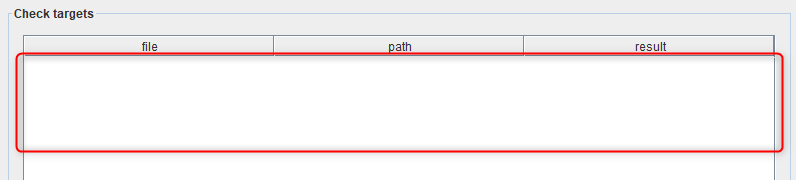
(5) Click the [[4] Clear] button to delete the contents displayed in [Check targets].

For inquiries
If you have any questions, please contact us using the form below.
How to check logs
Windows version:
Launch “MOC3ConsistencyChecker_log.exe” included in the file to display a command prompt and check the log.
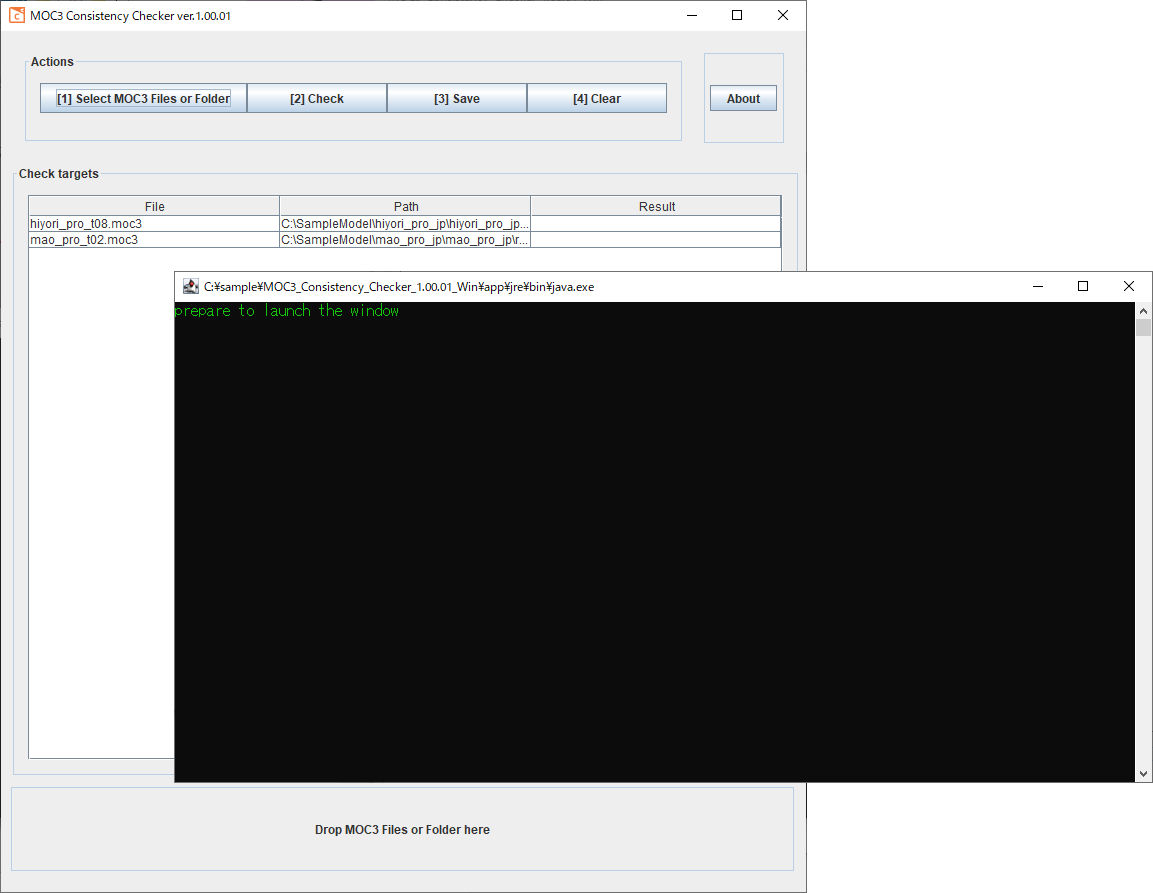
Please include this log with your inquiry.
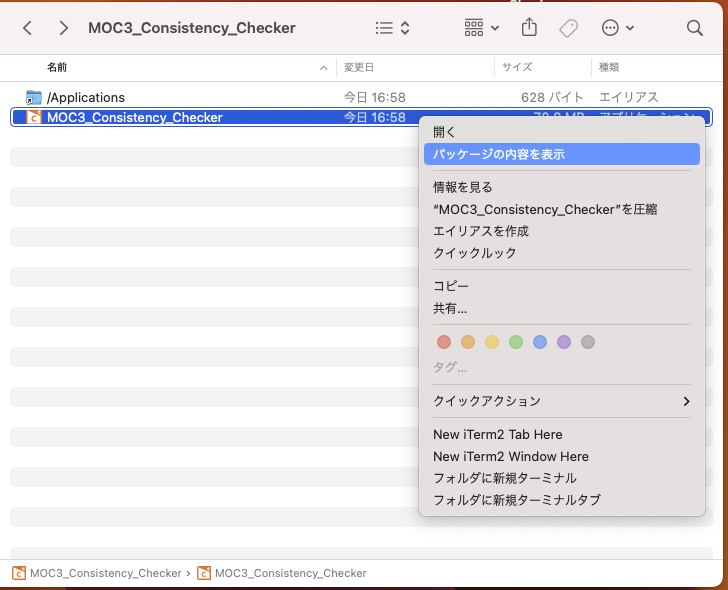
Mac version:
Right-click “MOC3_Consistency_Checker.app” and select “Show Package Contents.”
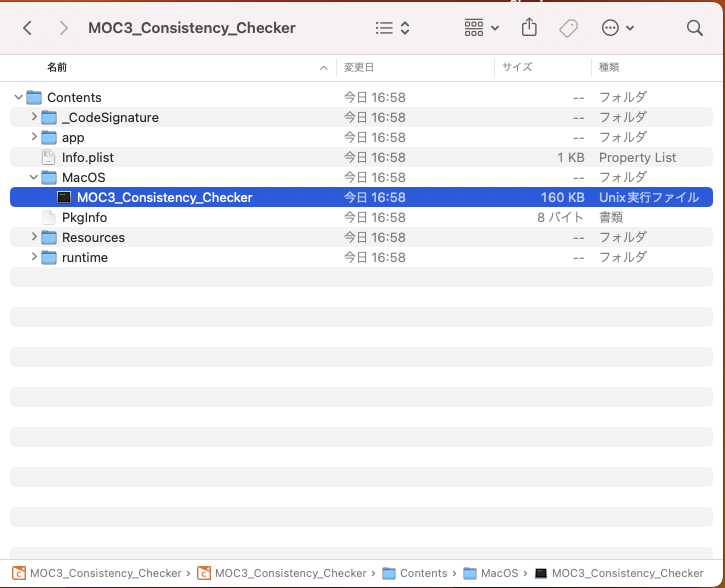
Run “Contents/MacOS/MOC3_Consistency_Checker.”
The terminal appears together with the log, enabling logs to be checked.
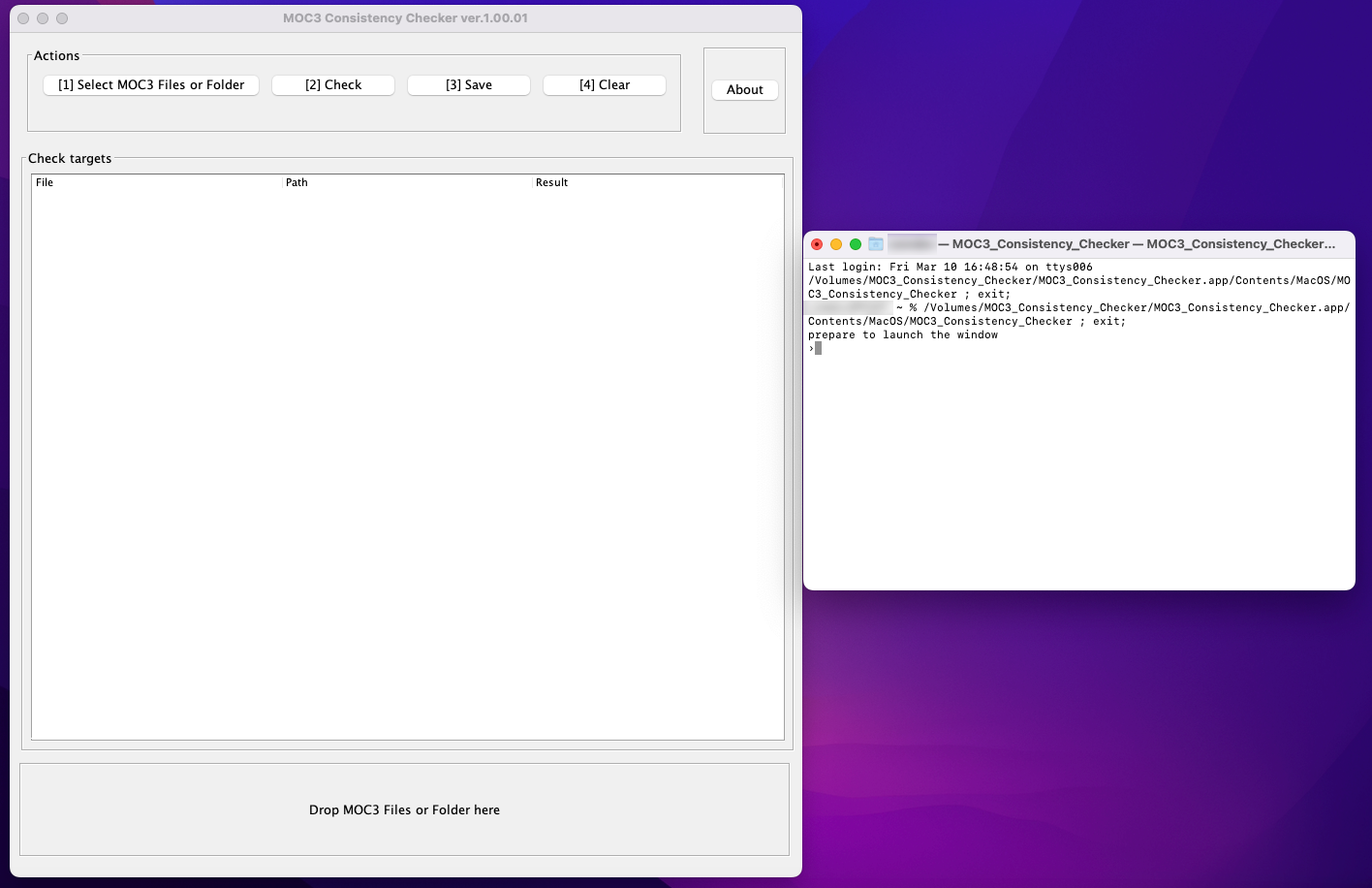
Please include this log with your inquiry.