








Notes on model creation using the new functions of Cubism 5.3
Updated: 02/24/2026
The “blend mode” and “offscreen drawing” functions in Cubism 5.3 are new functions that greatly improve the expressiveness of models, but compared to previous functions, they impose a greater load during drawing.
“Expressiveness” and “load” are two sides of the same coin, and these functions must be used with an understanding of the drawing load.
This section describes possible “load” points and things to keep in mind when creating models.
The “load” is also explained in the archived session of the “alive 2025” event held on Friday, December 12, 2025. Please click here to view the video.
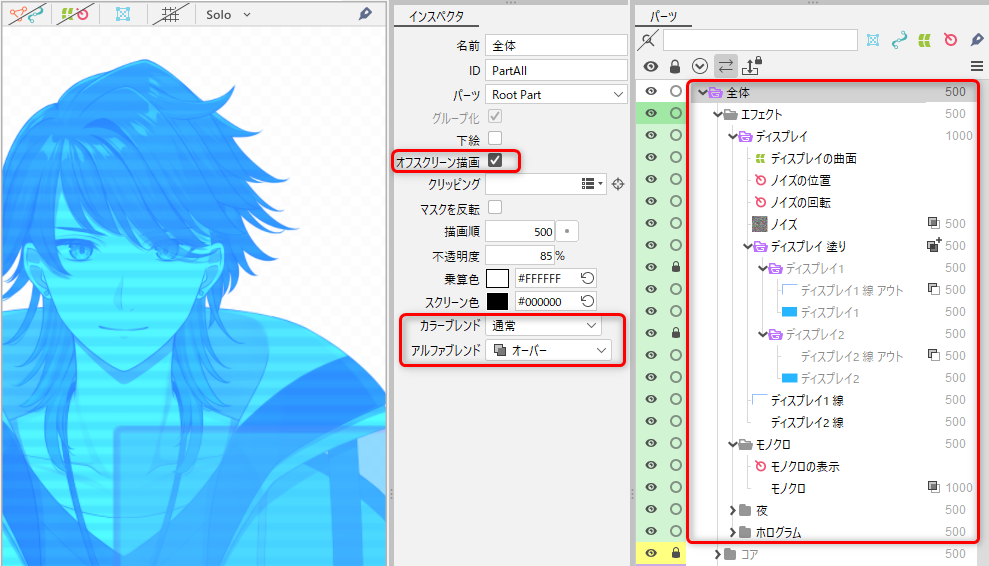
- Blend mode
- Offscreen drawing
- Comparison of blend mode and offscreen drawing loads
- Viewing the blend mode and offscreen drawing statistics
- Confirmation of operation
- Summary
- Sample data to use in checking the load
- [alive 2025] A must-see for designers! Techniques for creating Live2D models that optimize processing load and maximize expressiveness
Blend mode
Models created using the advanced blend mode*1, newly added in Cubism 5.3, increase the drawing load and affect the frame rate (fps) compared to blend modes up to version 5.2.
*1 “Advanced blend mode” means any function other than “Normal,” “Add (Before 5.3),” or “Multiply (Before 5.3)” of color blend and any function other than “Over” of alpha blend.
Note: For details on the blend mode function, see “Blend Mode.”
Blend mode types
There is little difference in drawing load between the different types of advanced blend modes.
Number and size of ArtMeshes
The more ArtMeshes that use the advanced blend mode, the higher the drawing load and the more it affects the frame rate. Be careful not to use too many ArtMeshes.
There is no difference in drawing cost based on the size of the ArtMesh.
Offscreen drawing
Models with parts that were created using offscreen drawing affect performance more than models with parts that were not.
Performance here is affected by “drawing load” and “memory usage.”
Offscreen drawing affects performance due to:
| (1) | The use of offscreen drawing for models (determined at the time of model creation) |
| (2) | The execution environment in which models are activated (varies depending on the environment in which models are activated) |
Note: For details on the offscreen drawing function, see “Offscreen drawing.”
Number of parts
This falls under (1).
The more parts that were created using offscreen drawing, the higher the drawing load and the more it affects the frame rate. Be careful not to use too many parts.
At the same time, depending on the model structure, memory usage may be high.
About the model structure
When you use offscreen drawing, memory usage is determined by the number of parts used in the parent-child hierarchy and the maximum depth of this hierarchy.
A model with a structure that has a deep parent-child hierarchy of parts that was created using offscreen drawing will use more memory accordingly.
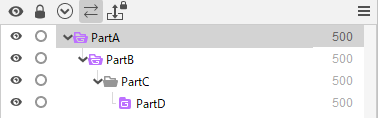
However, if parts created with offscreen drawing exist in parallel in the same hierarchy, memory usage will be less even though the number of parts used is the same compared to a model with a deeper parent-child hierarchy structure.
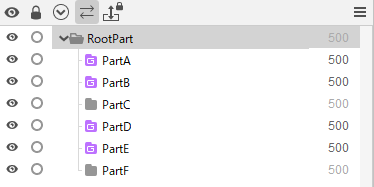
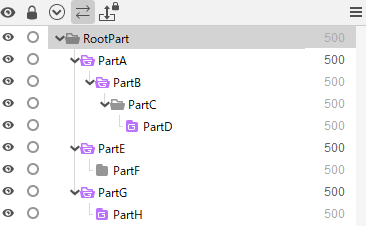
For models where these two methods are combined, it is best to make good use of the model structure, as shown below.
Rather than making one hierarchy deeper and using offscreen drawing for each part, you can reduce memory usage by making the hierarchy as shallow as possible and placing parts on the same hierarchy level where possible.
Tips
Use of offscreen drawing should be kept to the minimum necessary. That is, use a parallel hierarchy wherever possible and only deepen the hierarchy where absolutely necessary.
Size of parts
This falls under (1).
Performance is not affected by the size of the ArtMesh that is the child of a part for which offscreen drawing is set.
This is because the child ArtMesh is drawn only once, with or without offscreen drawing, and there is no difference whether it is drawn offscreen or to the display screen.
Size of the area in which to draw models
This falls under (2).
Offscreen drawing is generally created and drawn equally according to the size of the area in which a model is actually drawn and is consistent with the size of the area in which the model is drawn, regardless of the size of the child ArtMesh that is drawn offscreen.
Therefore, as the size of the area used to draw the model in the software increases, the memory usage increases proportionally, and at the same time, the drawing load increases, affecting the frame rate.
In addition, if offscreen drawing is used extensively on small ArtMeshes, the drawing cost will be high in contrast to the size of the displayed image, so offscreen drawing should be used with care.
The size of the model canvas and the size of the texture atlas have no effect here.
Comparison of blend mode and offscreen drawing loads
The ordering of the drawing load for each function is as follows.
Offscreen drawing (heavy) > Advanced blend mode (≈ clipping) >> Normal blend mode (light)
Viewing the blend mode and offscreen drawing statistics
Starting with Cubism Editor 5.3.00 beta4, you can check “Advanced blend mode usage count” and “Offscreen drawing-related” statistics from Model Statistics.
| Model Statistics | Cubism Viewer (for OW) |
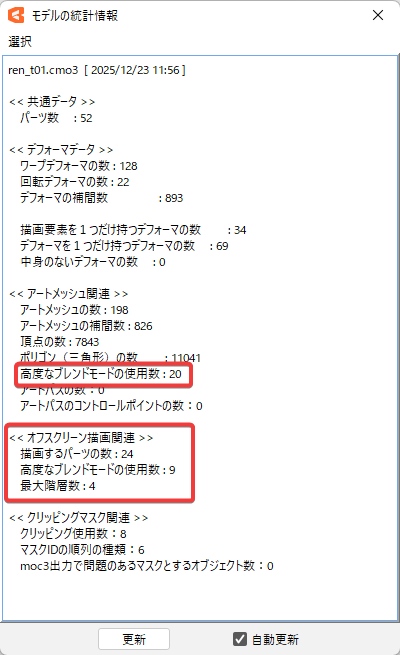 | 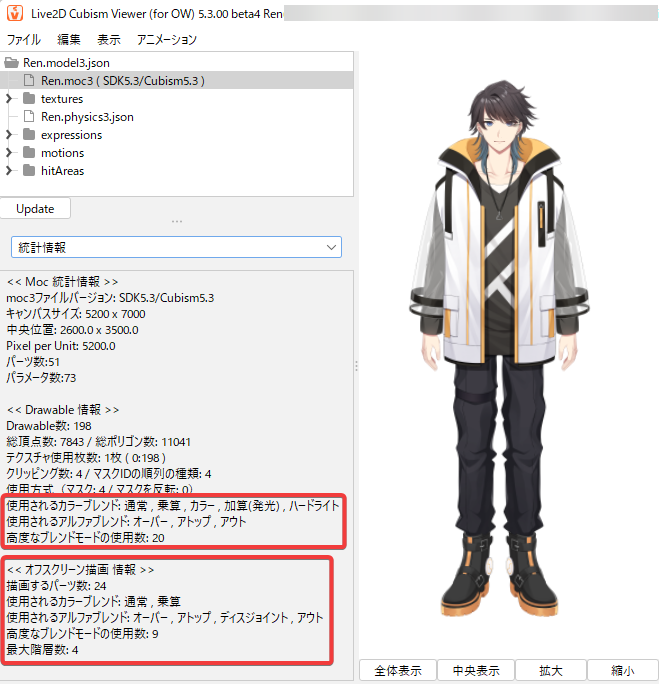 |
Confirmation of operation
Models using either the blend mode or offscreen drawing function will be affected in performance due to the specifications of PCs or other devices on which Live2D models are displayed and due to the actual screen size (screen resolution) used for the software to display the models.
The larger the screen size, the more it affects performance.
Tips
When checking the operation of models, be sure to check them by displaying the actual models to be used in an environment that runs software that displays the models, such as nizima LIVE.
Summary
When you create a model using blend mode or offscreen drawing, start by imagining which environments the model will run in, and then create the model that will run in the most restrictive environment.
Keep the following points in mind when actually creating models.
Precaution (1)
Adjust the number of times to use blend mode or offscreen drawing.
If performance is slow when a model is displayed or actually moved, it is necessary to refer to the Model Statistics and reduce the number of:
• Objects that use the advanced blend mode
• Parts with offscreen drawing.
Precaution (2)
Adjust the hierarchy structure when using offscreen drawing.
A structure with a deeper parent-child hierarchy that uses offscreen drawing will use more memory according to the maximum depth and number of parts used.
If there is a low amount of free memory when a model is displayed in the actual environment, it is necessary to make the parent-child hierarchy that uses parts with offscreen drawing shallower while referencing Model Statistics and the Parts palette.
Other precautions
The larger the resolution at which a model is displayed, the more it affects the “drawing load” and “memory usage.”
Be sure to make adjustments for precautions (1) and (2) as needed in your anticipated environment.
It is important to display and verify the actual models you will use in advance within the environment where these models will be displayed.
Sample data to use in checking the load
A model is available for verification with blend mode and offscreen drawing side by side.
You can check the load in an environment where the model is actually displayed.
Sample data can be downloaded here.
Note: Please be sure to read the “Free Material License Agreement” before downloading.
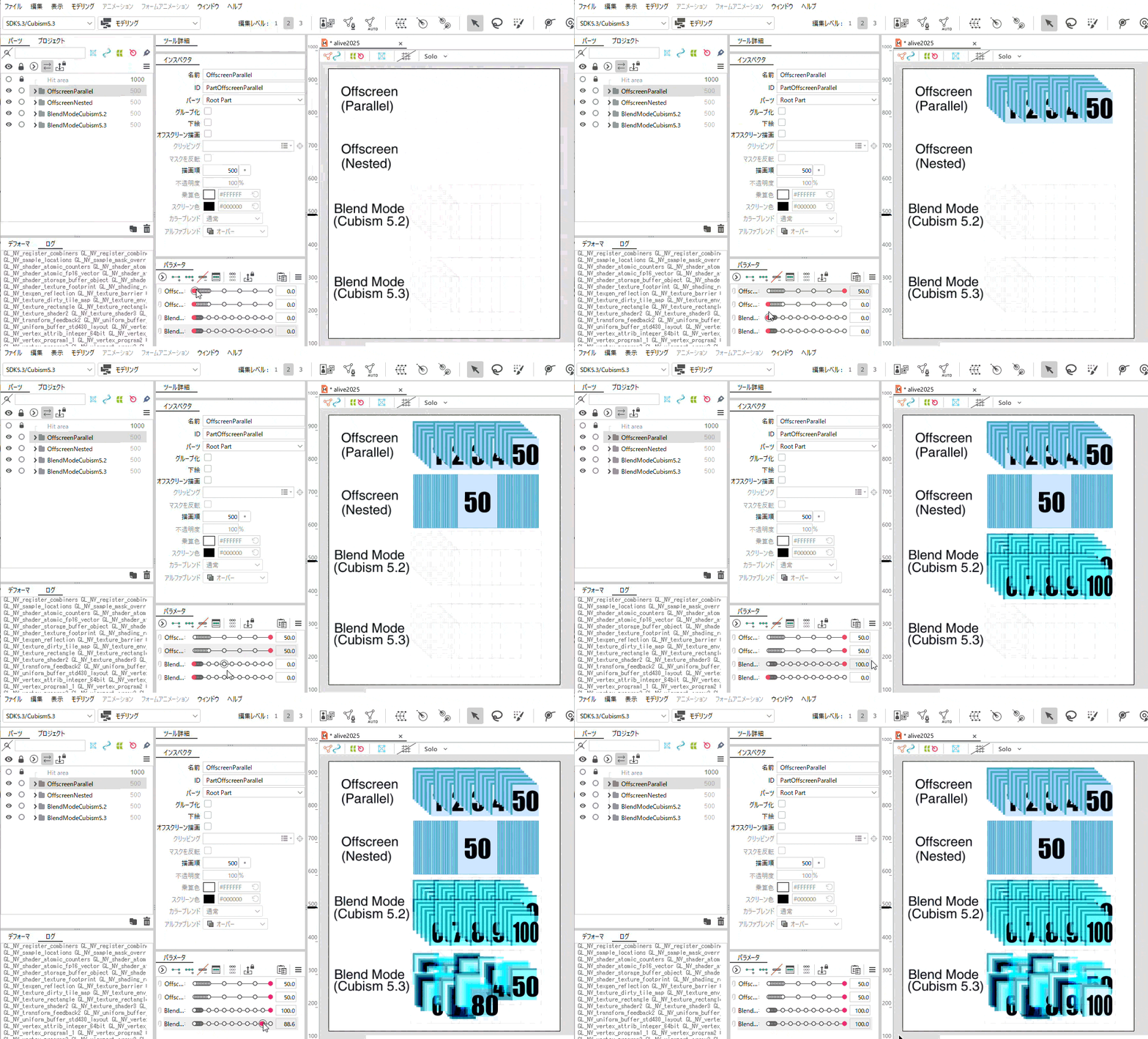
[alive 2025] A must-see for designers! Techniques for creating Live2D models that optimize processing load and maximize expressiveness
This video is an archive of the “alive 2025” session.
Please refer to this video for an introduction to the new features of Cubism 5.3 and for an introduction to load.