








How to use the drawing interrupt function
Updated: 01/08/2026
This section explains how to operate and set the drawing interrupt function from the inspector.
Please refer to the manual “Drawing interrupt function” for more details on the drawing interrupt function.
CubismRenderingInterceptController component
This component is used for the drawing interrupt function.
Attach this component to the object that you want to perform the drawing process between drawings of the Cubism model.
This component is located in Assets/Live2D/Cubism/Rendering/URP/RenderingInterceptor.
Objects to which the component can be attached
The objects to which the component can be attached are as follows:
- Cubism model
- Objects with a Renderer component
- Examples: Sprite Renderer, Mesh Renderer
TIPS
For objects with a Renderer component, these Renderers are set to Disable at runtime so that no drawing process occurs in the Unity render pass. Enabling the Renderer component during execution may result in unintended drawing results.Inspector
The following inspector will be displayed when you attach the component with Add Component, etc.
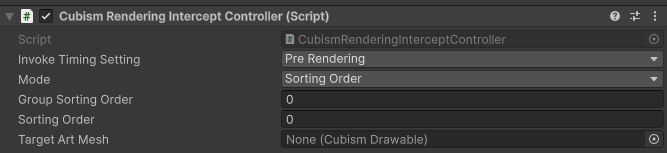
The description of each item is as follows:
Invoke Timing Setting
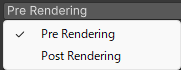
Sets whether processing is performed before or after the drawing process.
Pre Rendering
Immediately before the drawing process
Post Rendering
Immediately after the drawing process
Mode
Sets which method is used for the draw order.
Sorting Order
This method controls the draw order by the SortingOrder value described below. If all Sorting Modes of a Cubism model, which are drawn with a Grouped Sorting Index that has the same value as Group Sorting Order (see below), are BackToFrontZ or FrontToBackZ (comparison by distance from the camera), the interrupt may not be performed correctly.Grouped Sorting Index and Sorting Mode are set by CubismRenderController.
Z Depth
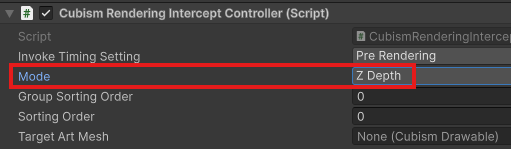
This method uses the distance from the camera to control the draw order. If all Sorting Modes of a Cubism model, which are drawn with a Grouped Sorting Index that has the same value as Group Sorting Order (see below), are BackToFrontOrder or FrontToBackOrder (comparison by the draw order), the interrupt may not be performed correctly.Grouped Sorting Index and Sorting Mode are set by CubismRenderController.
Drawable
A method in which a specific Drawable is specified and drawing processing is performed before or after the drawing process of the specified Drawable, regardless of the SortingOrder value or distance from the camera.
Group Sorting Order
This value determines which Grouped Sorting Index to draw at.
If there is no model to be drawn in the specified Grouped Sorting Index, the process is skipped except when InterceptingMode.Drawable is set.
Sorting Order
This value sets the draw order.
This variable is ignored except for InterceptingMode.SortingOrder.
Target Art Mesh
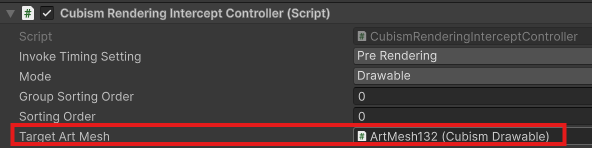
This drawable is referenced when InterceptingMode.Drawable is set.
Specify the Drawable at the position where you want to perform the drawing process.
Put another sprite between the Drawables of the model
Common procedure
Place a model and sprite on the scene.
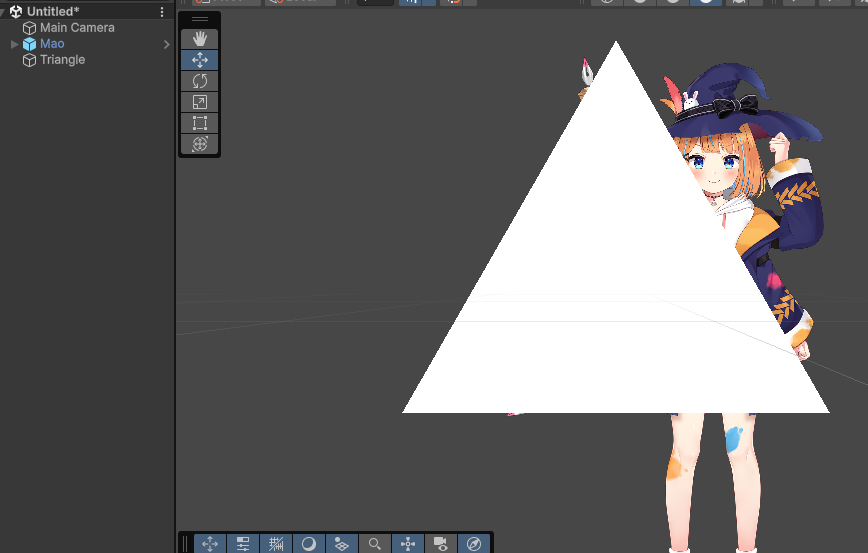
Attach the CubismRenderingInterceptController component to the sprite.
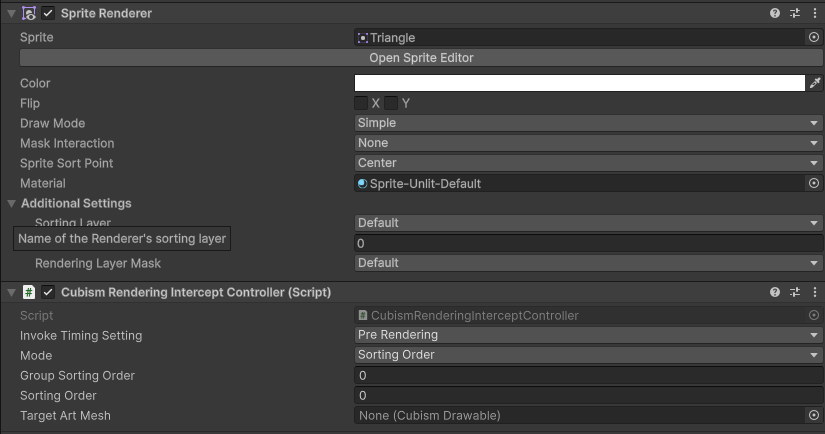
Select Invoke Timing Setting.
Inserting using Sorting Order
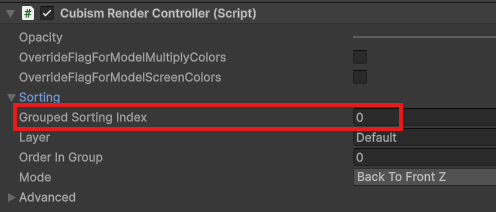
Check the Grouped Sorting Index value under Sorting in the CubismRenderController component of the model.
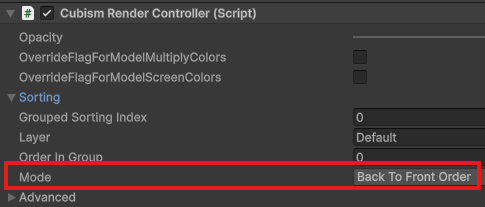
Set the Mode under Sorting in the CubismRenderController component of the model to Back To Front Order.
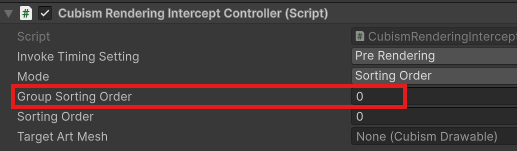
Match the Group Sorting Order value of the CubismRenderingInterceptController component of the sprite with the Grouped Sorting Index value confirmed earlier.
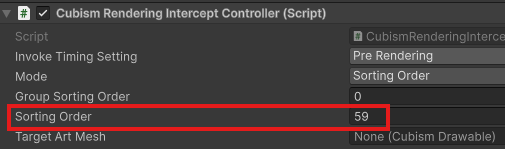
Set the Sorting Order of the CubismRenderingInterceptController component of the sprite to a desired value.
Play back the video and check the display.
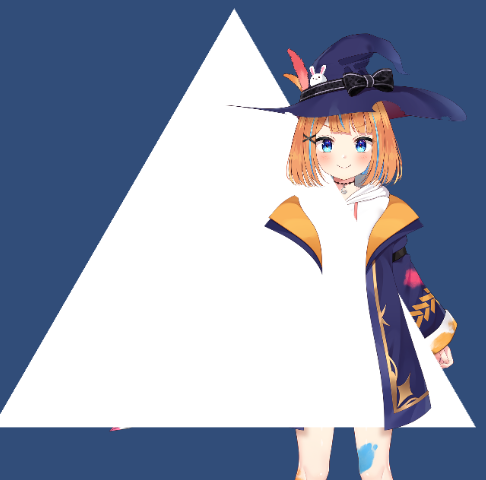
Inserting using Z Depth
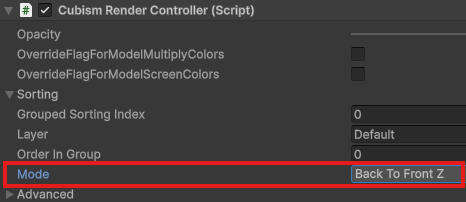
Set the Mode under Sorting in the CubismRenderController component of the model to Back To Front Z.
Set Mode of the CubismRenderingInterceptController component of the sprite to Z Depth.
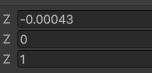
Specify the coordinates with reference to the coordinates of the Drawable objects you want to insert the sprite into.
This time, change the Z coordinate.
Play back the video and check the display.
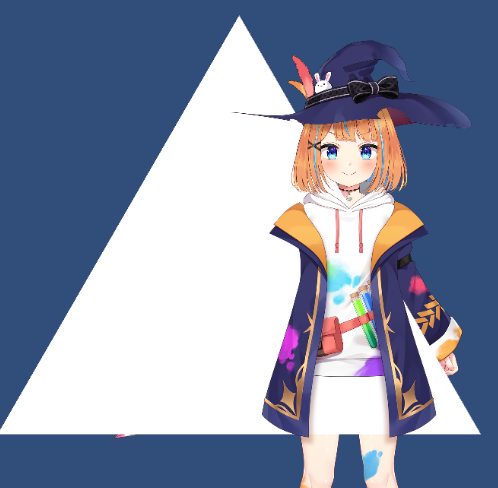
Inserting by specifying Drawables
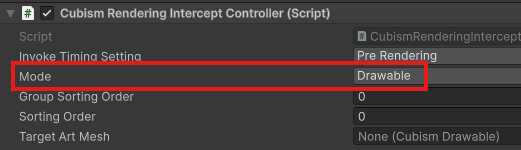
Set Mode of the CubismRenderingInterceptController component of the sprite to Drawable.
Set the desired Drawables of the model to Target Art Mesh of the CubismRenderingInterceptController component of the sprite.
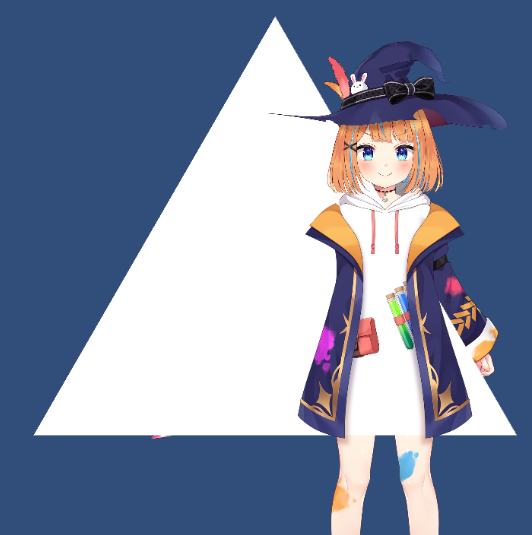
Play back the video and check the display.
Sample scenes
Sample scenes are available in Assets/Live2D/Cubism/Samples/RenderingInterceptor.
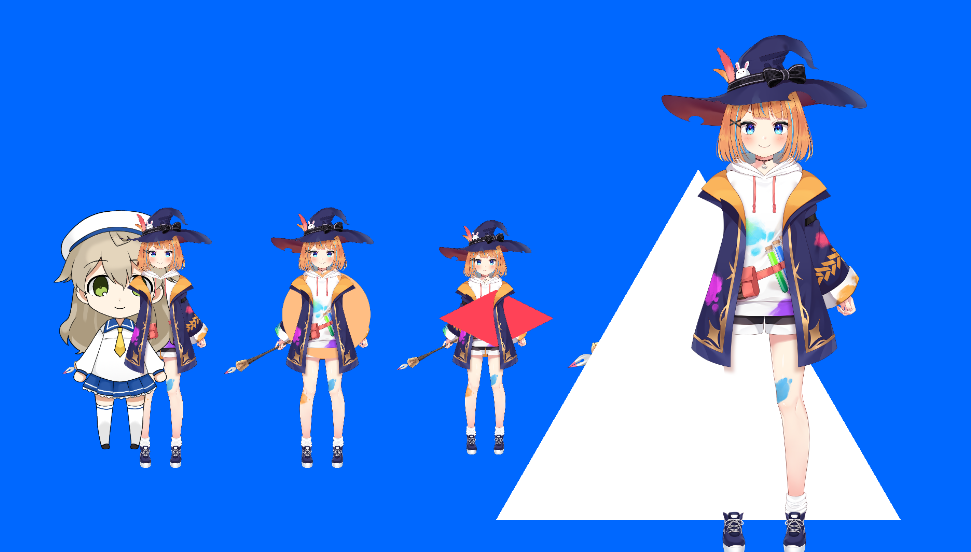
Upon playback, drawing samples are displayed in the following methods from left to right.
- When a model is inserted with the drawing interrupt function
- When the draw order is determined by the distance from the camera
- When a specific ArtMesh is specified
- When the draw order is determined with SortingOrder
Each of these settings can be freely changed from the inspector.