








Import to and setting of URP projects
Updated: 01/08/2026
This section explains how to create a Universal Render Pipeline (URP) project as well as how to import the Cubism 5 SDK for Unity R5 beta 3 and configure it to use Cubism models.
How to use
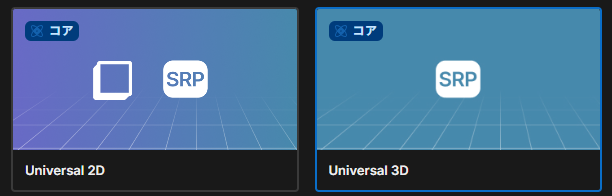
From new project creation in the Unity Hub, select Universal 2D or Universal 3D as the template.
Once the project is created, open Project Settings.
First, click Quality in the list on the left to see the Render Pipeline assets for the platform you plan to develop for.
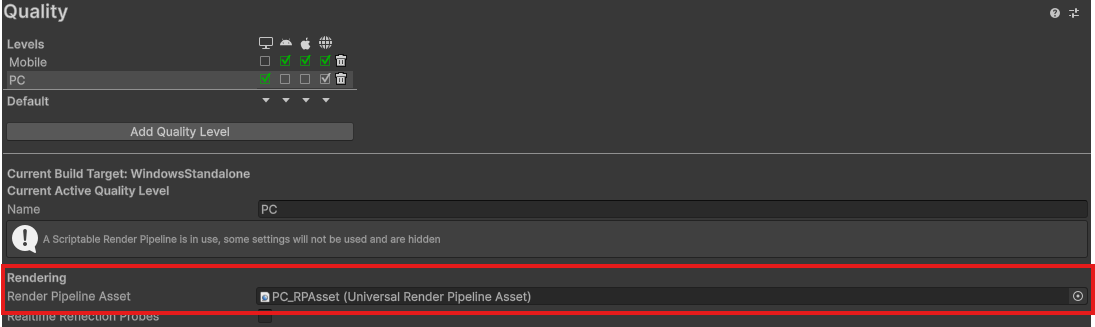
If these assets have not been set, click Graphics in the list on the left to see the Default Render Pipeline.

Package import and settings
Obtain the Cubism 5 SDK for Unity R5 beta3 from the download page and import it into Unity Editor.
Once the import is complete, open the Universal Renderer Pipeline asset you identified and set Renderer List to CubismURPRenderer.asset. If you do not need the other Universal Renderer Data assets, set CubismURPRenderer.asset to Default and remove the other Universal Renderer Data assets from the list.

Note that if multiple Universal Renderer Data assets are registered, the Cubism model cannot be drawn in the scene view unless CubismURPRenderer.asset is set to Default.
Precautions
If HDR is set for Universal Renderer Pipeline assets, please check HDR Precision.
When HDR Precision is set to 32-bit, the background will be all black and may not composite properly.
If you want to use HDR, setting HDR Precision to 64-bit will allow for normal drawing.
Please refer to the official Unity manuals, Manual: Universal Render Pipeline asset reference for URP and Manual: Display advanced properties in a URP Asset for details on settings.
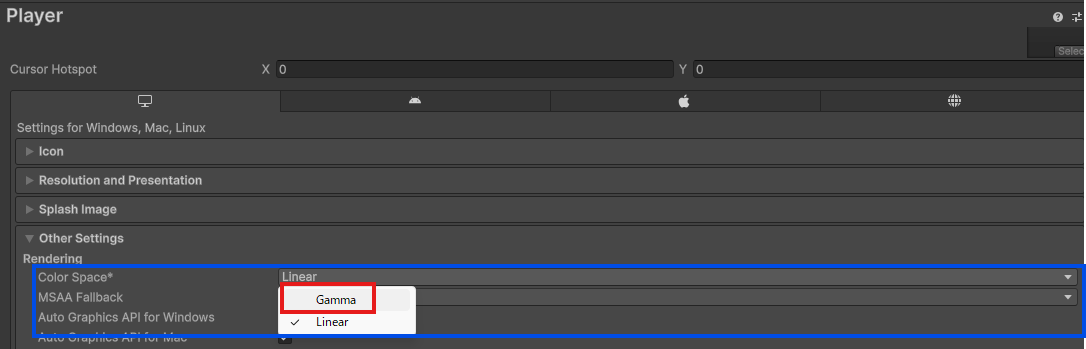
To achieve the same level of expression as Cubism Editor, HDR must be disabled and Color Space must be set to Gamma.
To set Color Space, click Player in the list on the left, and then select Other Settings.
Usage in scenes
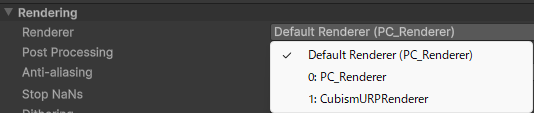
First, set the camera’s Renderer.
If CubismURPRenderer is set to Default, no setting is required.
If it is not set to Default, set CubismURPRenderer from the pull-down menu as shown in the image.
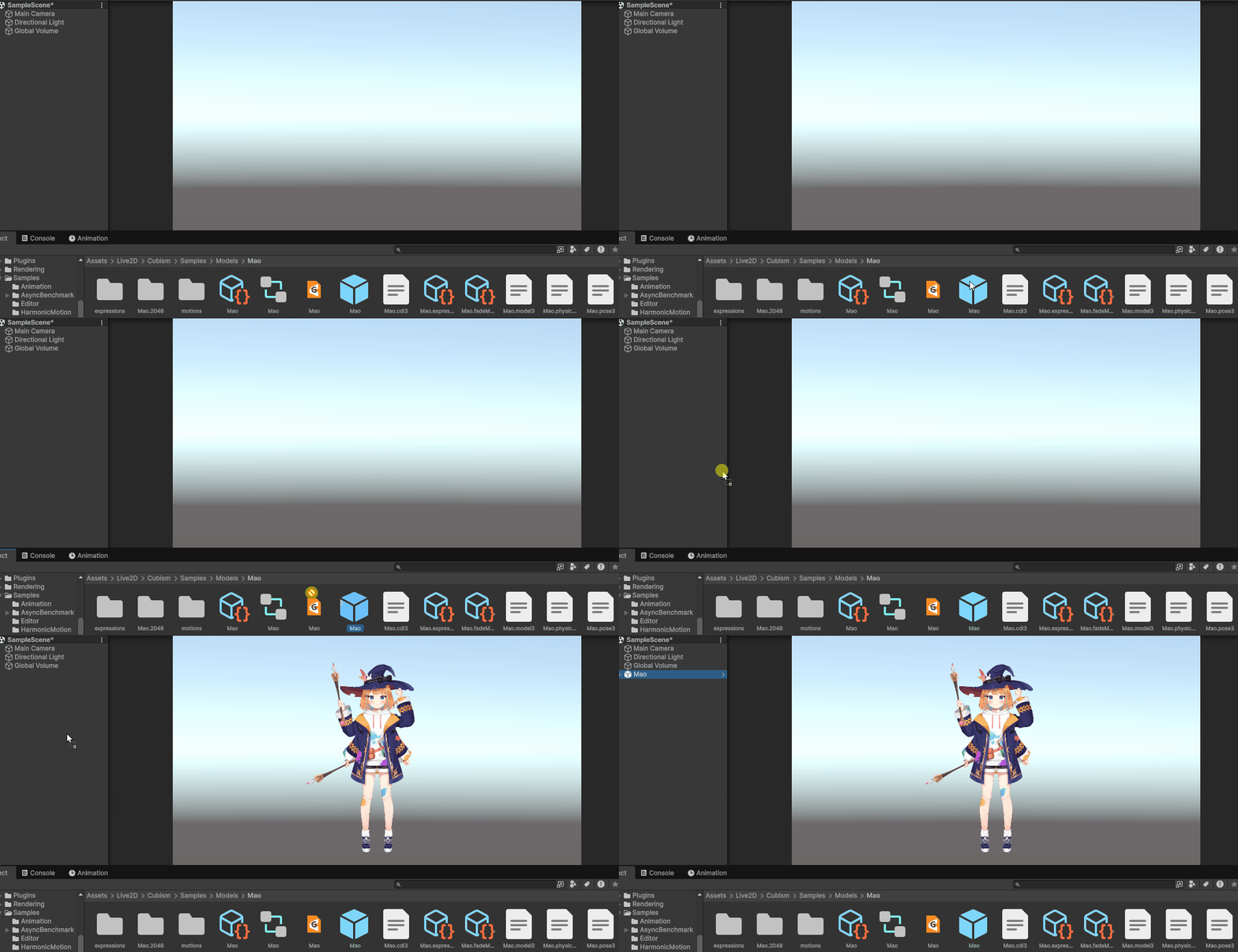
Then, place the desired model Prefab in the scene to draw the model.
About building
Since materials that use the blend mode are pre-generated in Shader Variants, build times may be significantly longer than before, depending on the environment used.
If there are materials or blend modes that are obviously not used, you can reduce the build time by setting the build to strip unnecessary materials.
For more information, including other precautions, please see “Migration from Built-in Render Pipeline to URP” or “Drawing with a custom render pass.”