








Eye tracking settings
Updated: 01/08/2026
This section explains how to make the model’s line of sight, etc., follow the mouse cursor.
Summary
To set up eye tracking, the Cubism SDK uses a component called LookAt.
The SDK includes a sample scene called [LookAt] that uses this component, so please check that for reference as well.
Here is a sample that tracks the position of a GameObject that rotates above the model’s head with the line of sight.
/Assets/Live2D/Cubism/Samples/Lookat
To set up LookAt, do the following four things.
- Attach components to manage LookAt
- Set the center of the coordinates to be tracked
- Specify parameters to be tracked
- Set the target of eye tracking
Attach components to manage LookAt
Attach a component called CubismLookController, which manages eye tracking, to the GameObject that is the root of the model.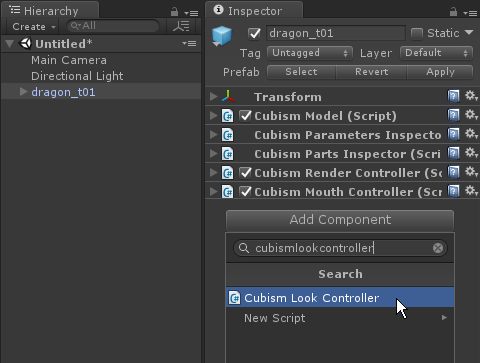
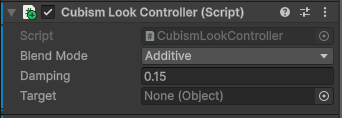
CubismLookController has three setting items.
– Blend Mode: This is the setting of how the parameters reflect the values that fluctuate when eye tracking. There are three options that can be set.
Multiply: Multiply by the currently set value.
Additive: Add to the currently set value.
Override: Overwrite the currently set value.
– Damping: This is the time it takes to follow the target. The smaller the value, the faster the tracking speed.
– Target: Sets the target of eye tracking. Details are described below.
For this example, set Blend Mode to [Override].
Specify parameters to be tracked
GameObjects that manage the parameters of the model are located under [Model]/Parameters/.
The name set for this GameObject is the ID of the parameter.
These are identical to those obtained with CubismModel.Parameters().
From among the GameObjects for this parameter, attach a component called CubismLookParameter to the one with the ID you want to track.
If a CubismLookParameter is attached to a GameObject for a parameter, the aforementioned CubismLookController will refer to it and follow it.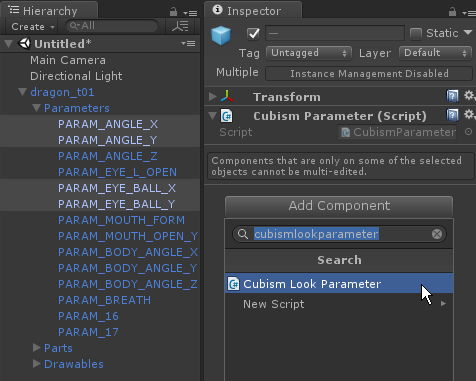
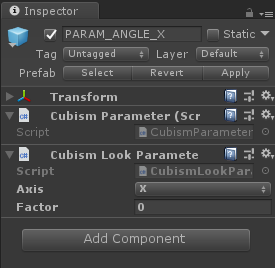
CubismLookParameter has two setting items.
– Axis: Specify which axis deformation to treat the set parameters as. For example, if X is specified, it is calculated and set based on the value of the Target’s X axis.
– Factor: Sets the number to multiply the calculated value by. Since the calculation result value ranges from −1 to +1, depending on the parameter, increasing or decreasing its range or inverting the + and − values may result in more natural motion.
Set the center of the coordinates to be tracked
For the CubismLookController component, a component that implements the [ICubismLookCenter] interface on the same game object must be set.
Depending on the settings, the center of the coordinates to be tracked can be set to the position of any GameObject or to the center of a specified ArtMesh.
Here, the coordinates of the model prefab are set to the center.
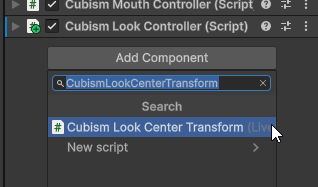
Attach CubismLookCenterTransform to the GameObject that will be the root of the model.
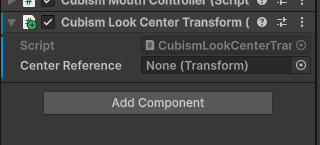
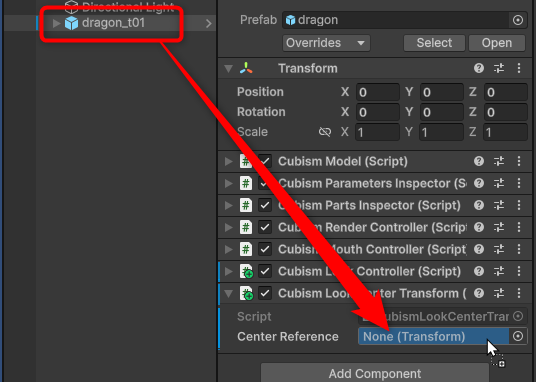
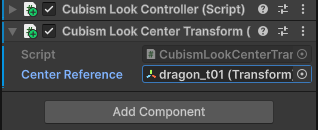
Drag and drop the model prefab into the [Center Reference].
Set the target of eye tracking
Finally, prepare the target to be followed.
The [Target] of the CubismLookController component should be set to a component that implements the [ICubismLookTarget] interface.
Depending on the target settings, it is possible to set specific conditions, such as the mouse cursor or a GameObject position as the target for eye tracking, or to track only while dragging.
Create a C# script called “CubismLookTarget” and write the code as follows.
Here, the coordinates of the mouse while dragging are the target of tracking.
using Live2D.Cubism.Framework.LookAt;
using UnityEngine;

public class CubismLookTarget : MonoBehaviour, ICubismLookTarget
{
    public Vector3 GetPosition()
    {
        if(!Input.GetMouseButton(0))
        {
            return Vector3.zero;
        }

        var targetPosition = Input.mousePosition;

        targetPosition = (Camera.main.ScreenToViewportPoint(targetPosition) * 2) - Vector3.one;

        return targetPosition;
    }


    public bool IsActive()
    {
        return true;
    }
}
Create an empty GameObject and attach the above CubismLookTarget to it.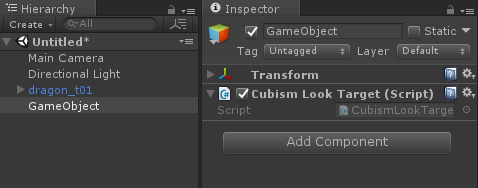
Select the model and drag and drop the GameObject created above from the Inspector View into the [Target] of the CubismLookController.
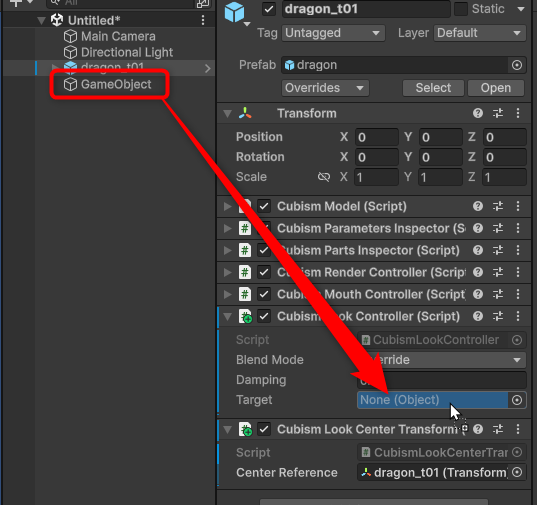
This completes the setup.
Running the scene and dragging the Game View with the left mouse button causes the model’s line of sight to follow.