







How to create animation data
Updated: 01/09/2026
Camera tracking movements or videos can be saved as animation data.
Creating animation data from tracking
1. Select [Settings/Other] > [Animation data creation] to open the animation creation window.
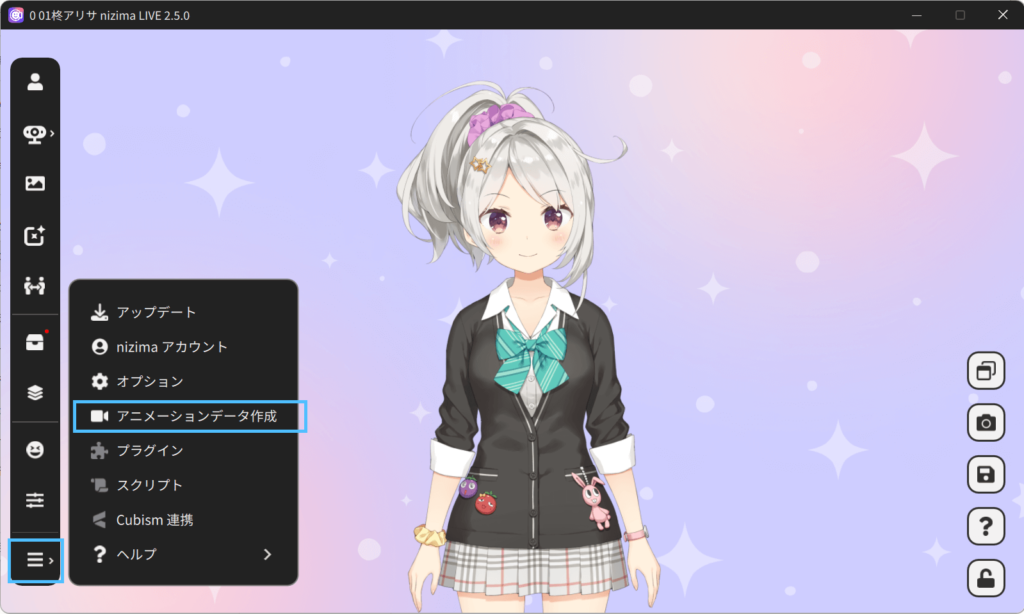
2. Select the model you wish to record from the target models.
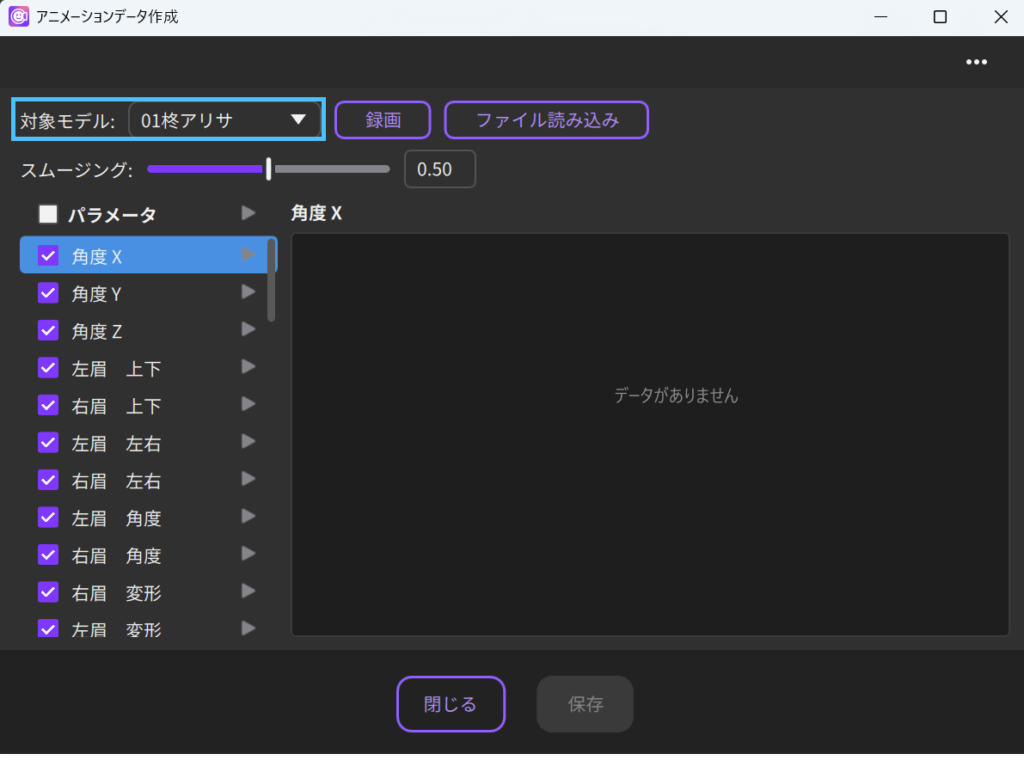
3. Click Record to start recording.
During recording, the recording time is displayed, and the graph is being loaded.

4. Press Stop to save the animation.
5. Press the playback button next to a parameter to play the animation.
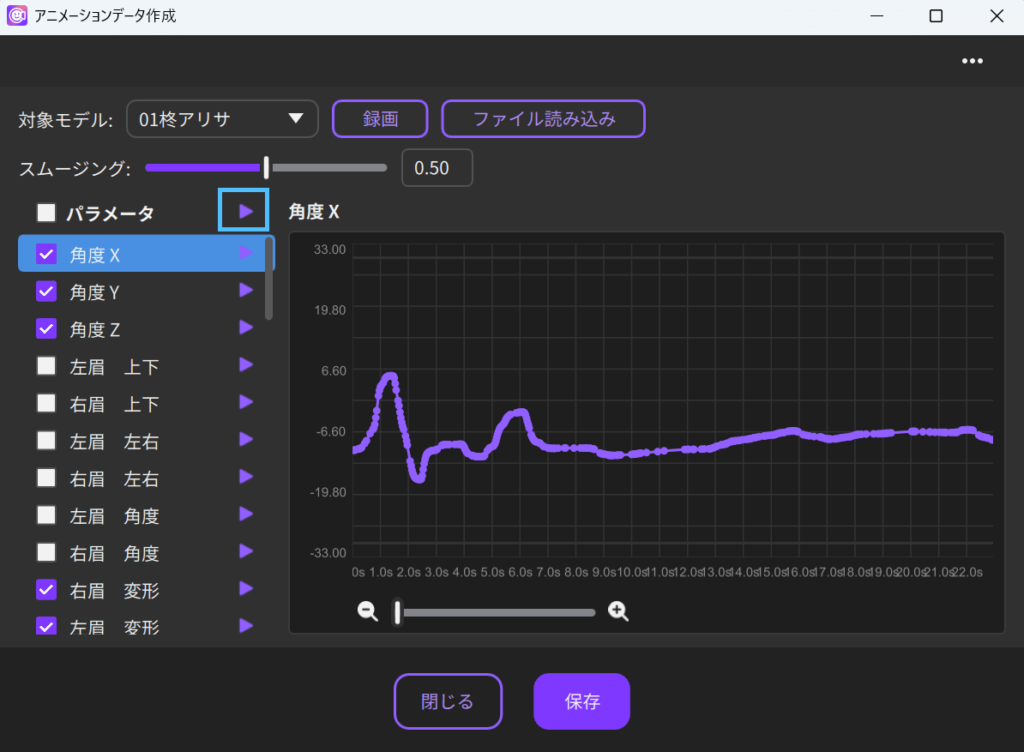
6. To stop the animation, click the stop button or the pause button on the timeline in the bottom left corner of the window.
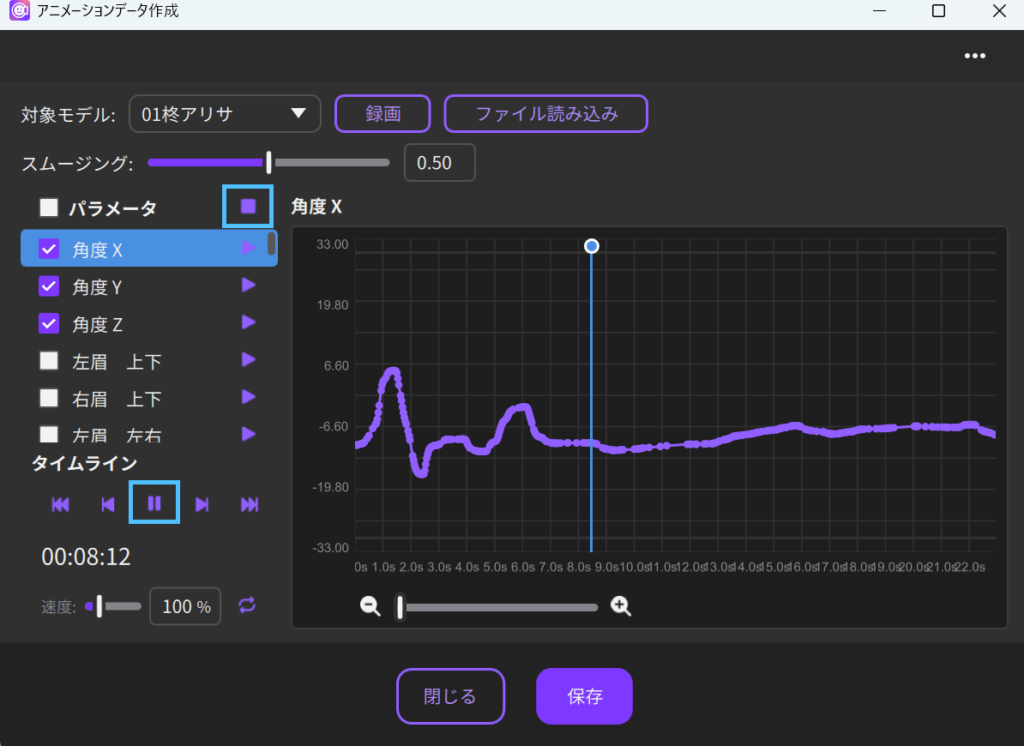
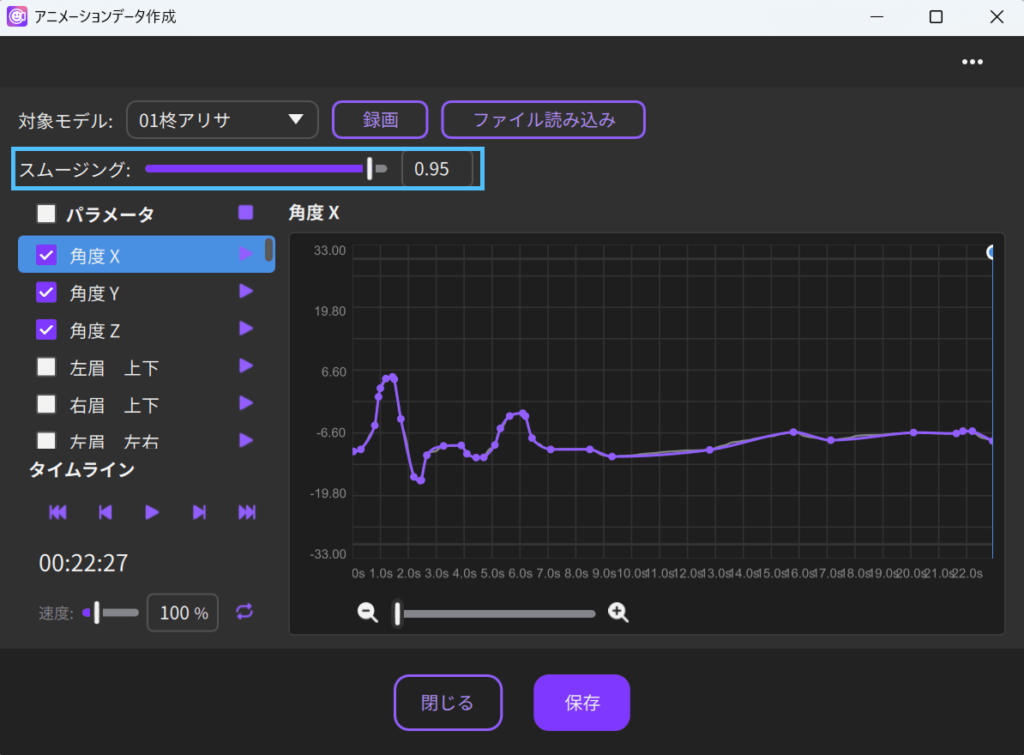
7. To adjust the graph, use the smoothing slider.
The closer the value is to 1, the more points are thinned out and interpolated by the curve.
8. Click Save to save motion3.json.
Only the parameters whose checkboxes are selected will be exported.
Creating animation data from videos
1. In the animation data creation window, select the file (mp4, mov, etc.) from [Import file].
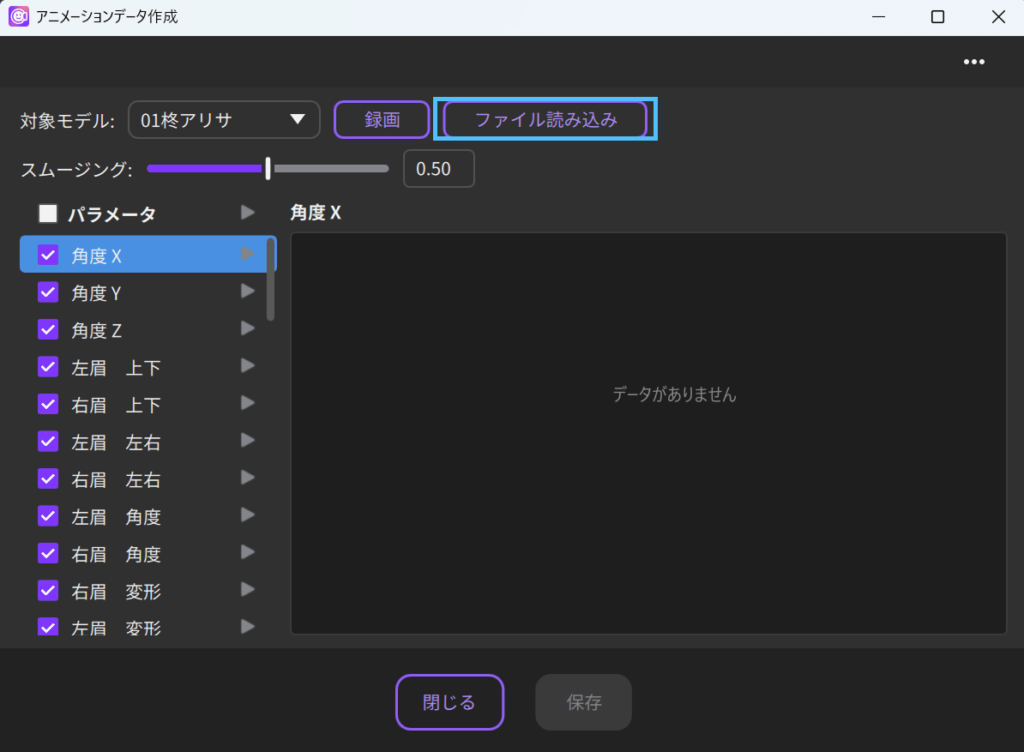
2. When you click Record, the tracking based on the video is applied in real time, and the data is recorded.
At this time, if there is audio data in the video, lip-sync is automatically applied. The speaker button can be used to toggle audio playback on and off, but lip-sync will continue to be applied even when audio is turned off.
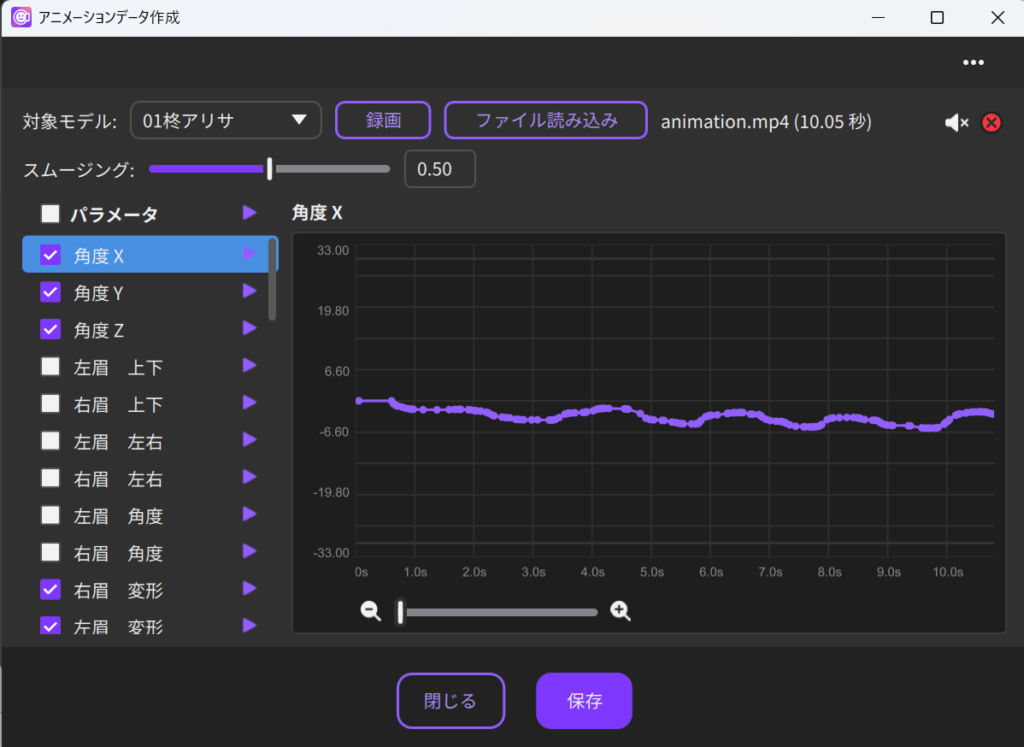
3. Click Save to save motion3.json.
Only the parameters whose checkboxes are selected will be exported.
Notes
To return to the method of recording tracking, delete the video using the “×” button to the right of the file name.