







Parameter controller utilization techniques
Updated: 02/04/2025
This page summarizes techniques for effectively using parameter controllers.
A wide range of explanations will be provided, including common mistakes and pitfalls as well as applied techniques for advanced users.
Use this page to learn practical points to optimize and efficiently control performance.
See below for basic usage of the parameter controller.
“Basic operation of parameter controllers” (tutorial video)
“About the parameter controller”
“Controller target settings”
Model structures that are easy to control with a controller
Matching the amount of change in parameters with the amount of change in movement
The parameter controller looks for the best parameter values when controlling parameters collectively.
Matching the ratio of the amount of change in the parameter to the amount of change in the movement makes it easier to find the optimal parameter values.
When creating large rotational movements of parts such as arms and legs, it is recommended to set the key value according to the angle.
This reduces the amount of calculation during control and makes it easier to create smooth movements.
First, set the standard angle at the default position.
Click [Set Standard Angle] below the red frame to replace the angle item with 0 degrees.
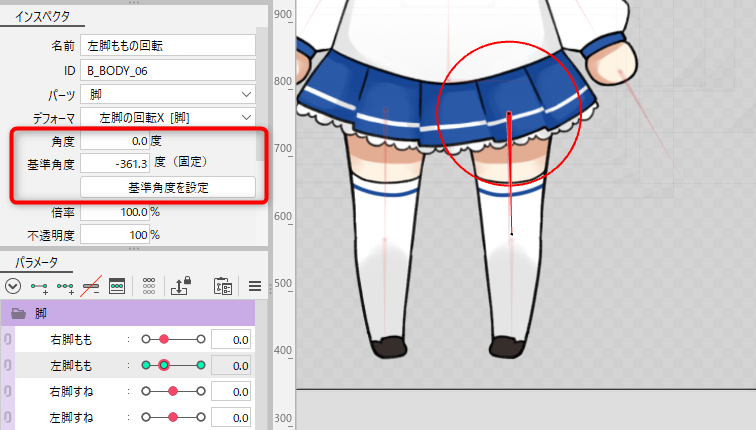
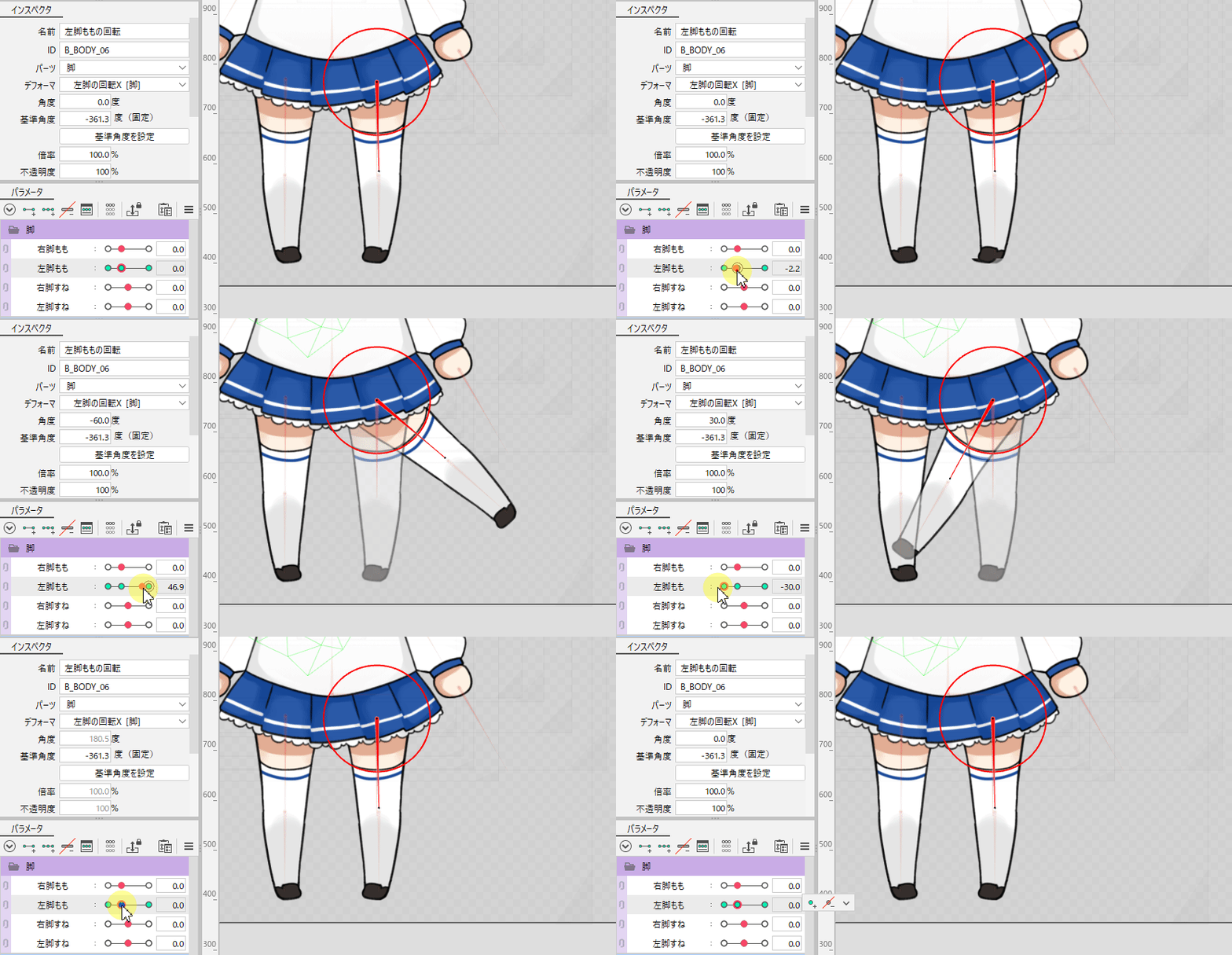
In this model, the movement is set up to rotate the left foot 30 degrees inward and 60 degrees outward.
Adjust by entering the actual value so that the left key is 30 degrees and the right key is −60 degrees.
TIPS
Since it is important to match the amount of change in parameters with the amount of change in motion, angular values can be on a 1/10 scale.
Example: −30, 0, 60 → −3, 0, 6
Matching key values of related parameters
Key values may exceed 100 when you set angles for leg rotation, etc.
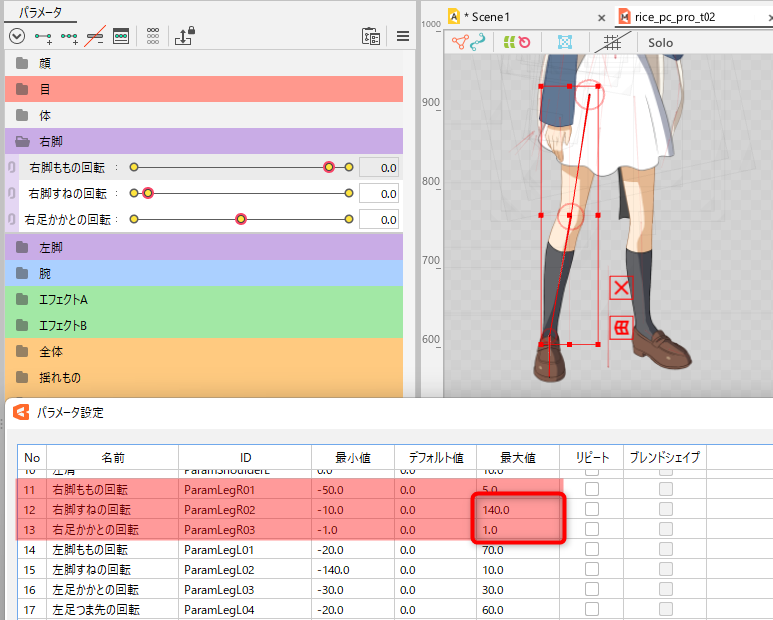
In the model below, “heel rotation” has extremely small values ranging from −1.0 to 1.0, and there is a large difference between the maximum and minimum values with “shin rotation,” so the optimal parameter may not be fully identified.
“Heel rotation” can also be adjusted to the actual angle values to reduce the calculation load and create a smooth movement.
If you experience extremely slow movement while operating a controller, check the key values of the relevant parameters.
Tips for operating the controller
How to select and edit overlapping controllers
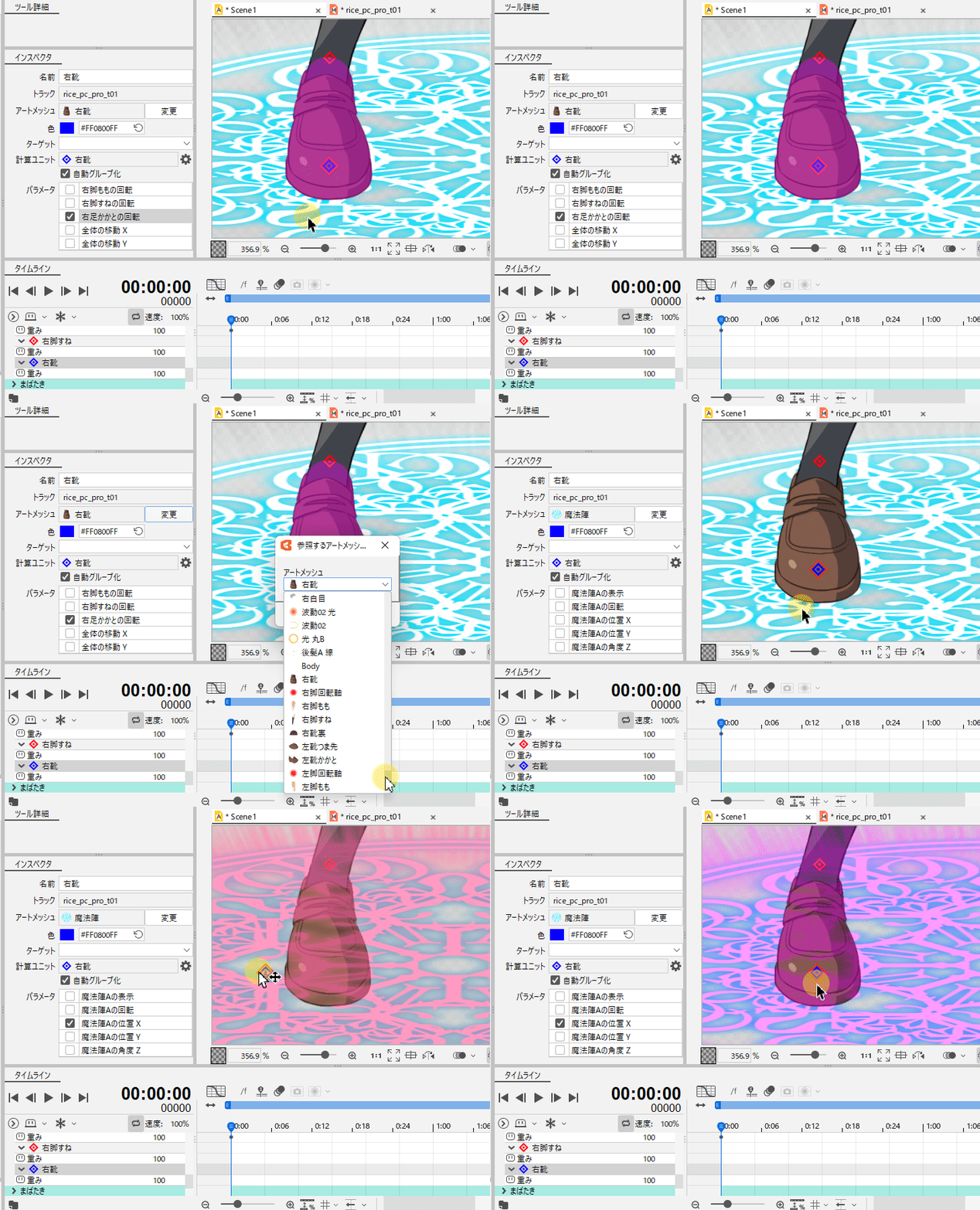
When you set targets, controllers may overlap.
You can select overlapping controllers alternately by clicking them.
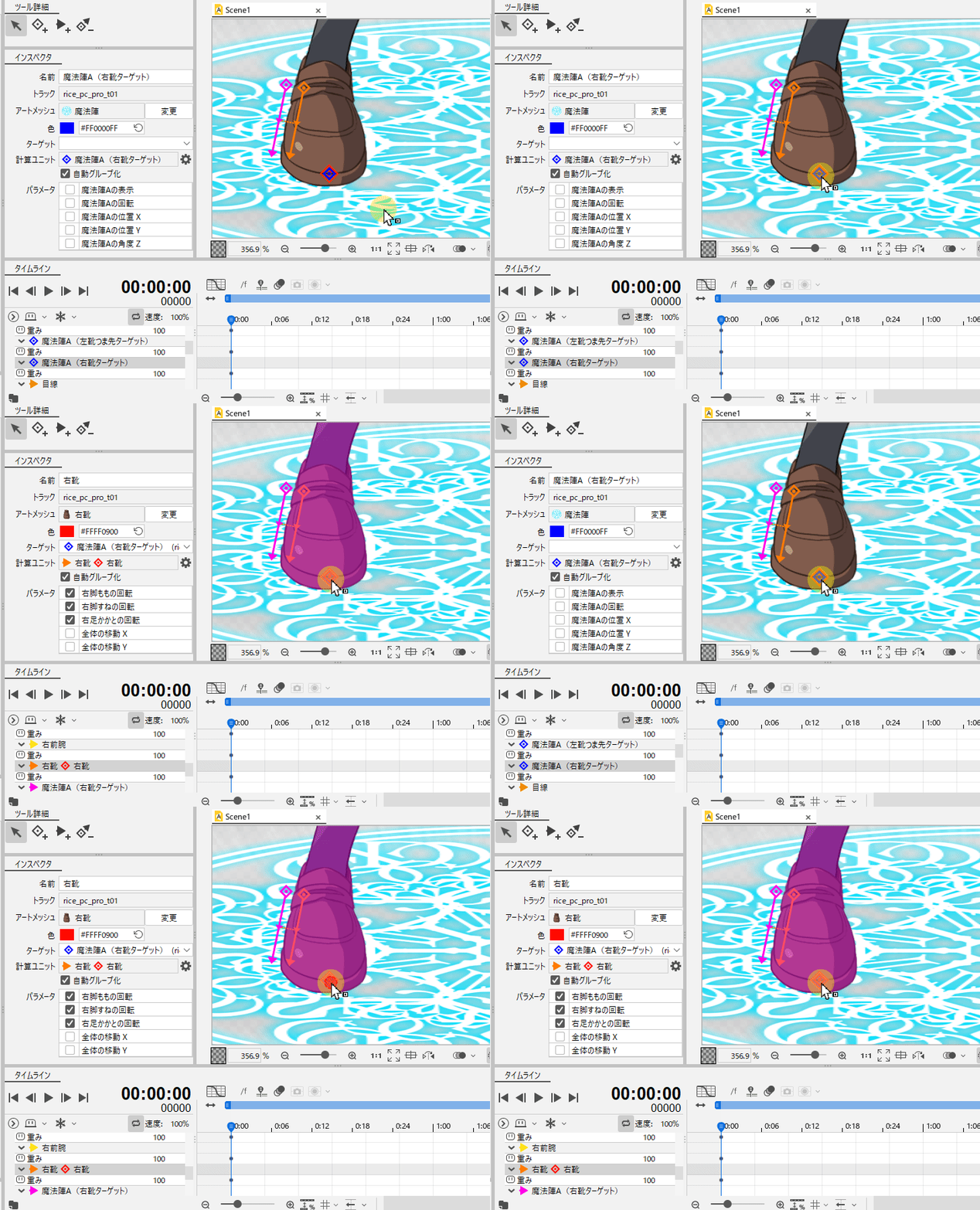
In addition, you can use the [Change] button in the inspector palette to change the controller links for the overlapping ArtMeshes.
How to check calculation units
Depending on the order in which the controllers are calculated, the final appearance may change.
The following state shows blue tracking a red target and yellow tracking a green target.
However, when yellow tracks green, it moves slightly out of position.
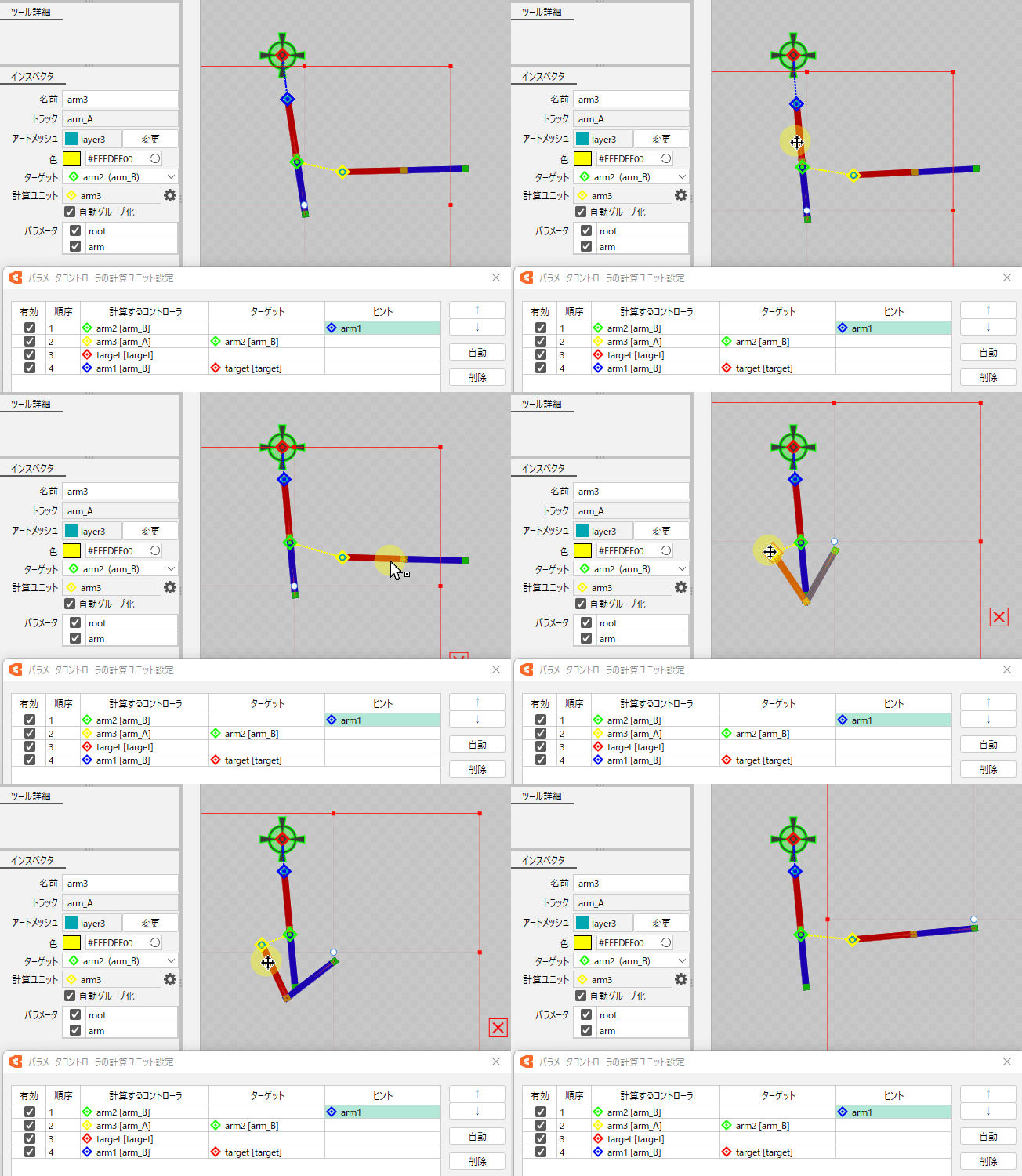
The reason it does not track the intended position is the order in which the controllers are calculated.
Calculations are executed so that blue tracks red in “order 4” after yellow tracks green in “order 2.”
This causes yellow to refer to green’s past position because green is moved by blue, which is calculated later.
If the controller is moved even slightly, the calculations are performed in the order set, so the calculation order must be changed to allow yellow to track green.
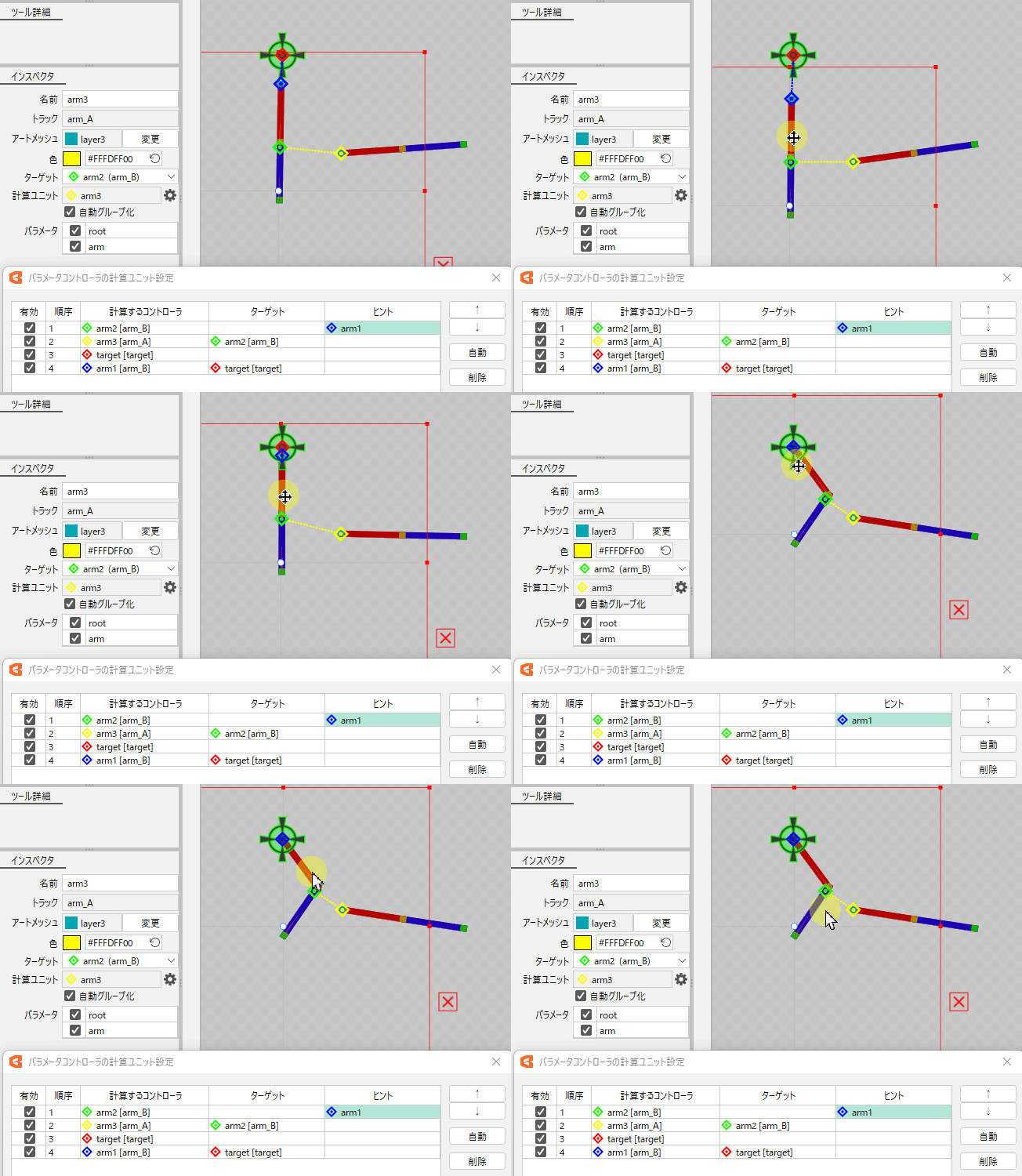
In this case, the blue arm1 is shown with a green background in [Hint].
The green background indicates that this problem can be solved by changing the order, allowing the controller to track the position as calculated, as shown in the figure below.
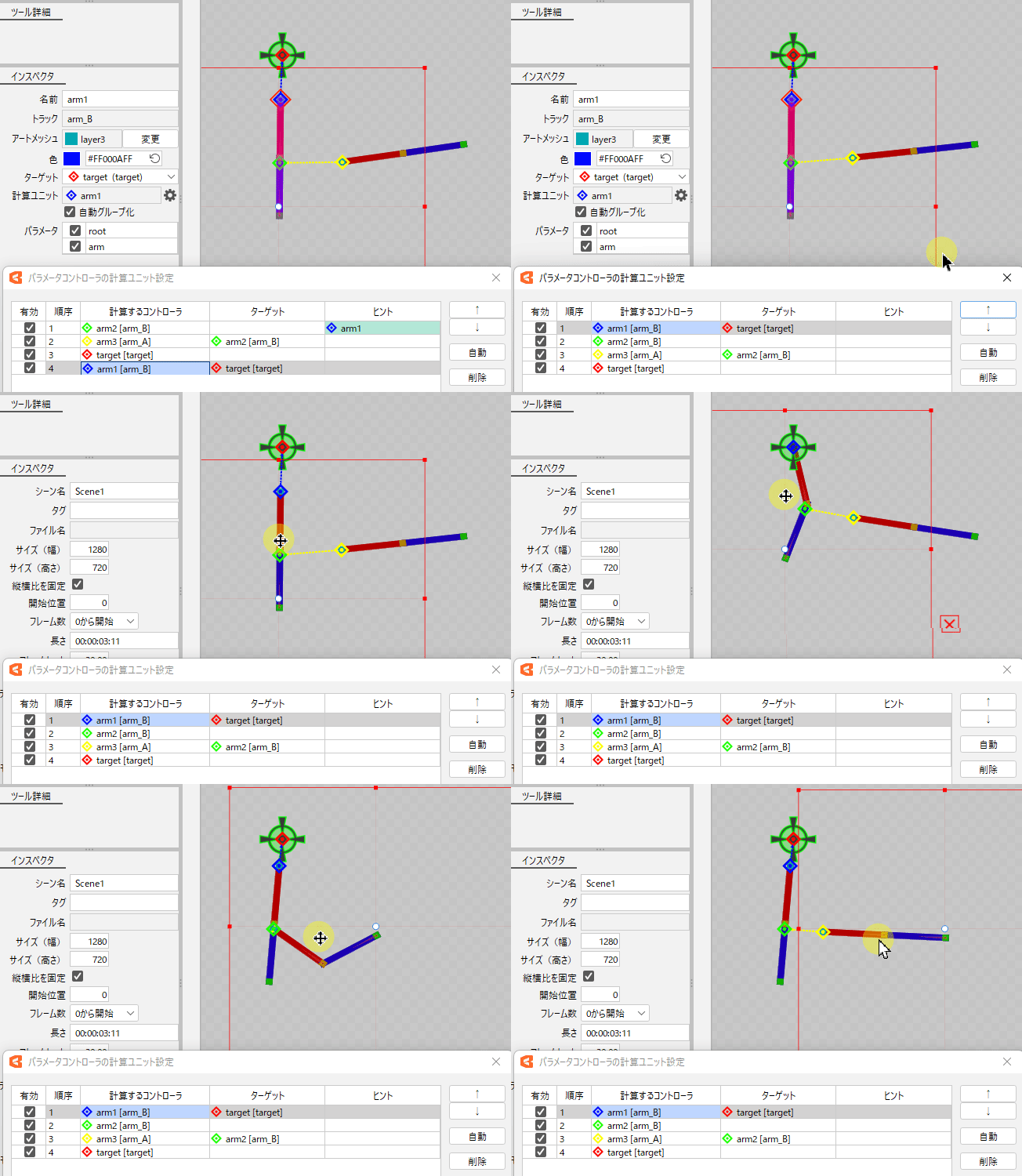
In addition, by clicking [Automatic] in the calculation unit settings dialog box, you can automatically rearrange the calculation order of controllers shown with a green background in the hint to produce the result as calculated.
TIPS
Entries shown with a green or red background in the Hint column only indicate that the recommended calculation result has not been reached.
If the intended movement is achieved when the motion is played back, it does not matter if the state is indicated in the hint.
Advantages of target tracking
By tracking the controller, you can create a parent-child structure on the animation.
The following model has target settings to stick the arrow to the bow and the bow to the left hand.
Each part only performs simple rotational and translational movements, and complex movements are controlled by target tracking.
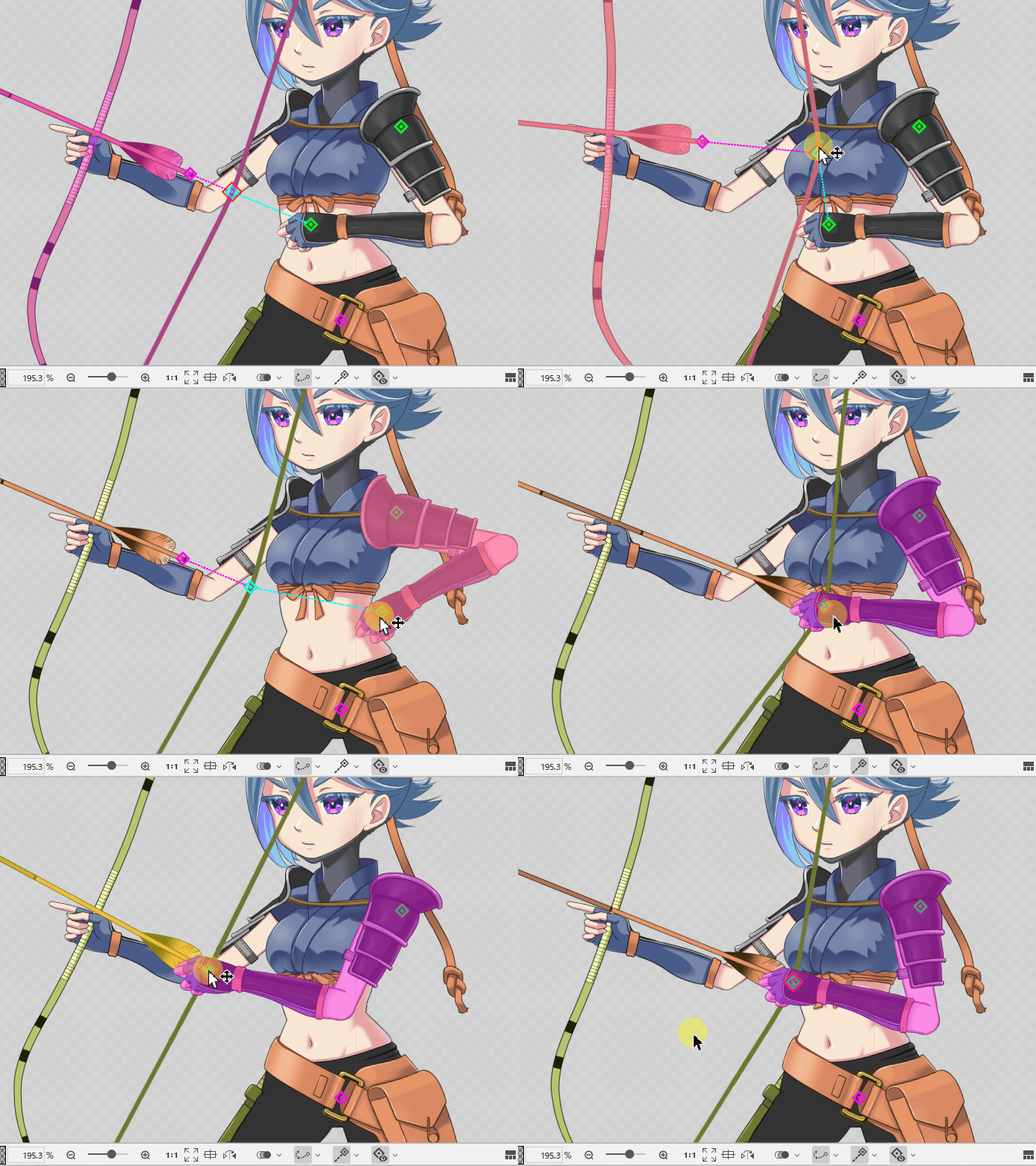
Targets can also be easily replaced, which has the advantage of facilitating trial-and-error in animation.
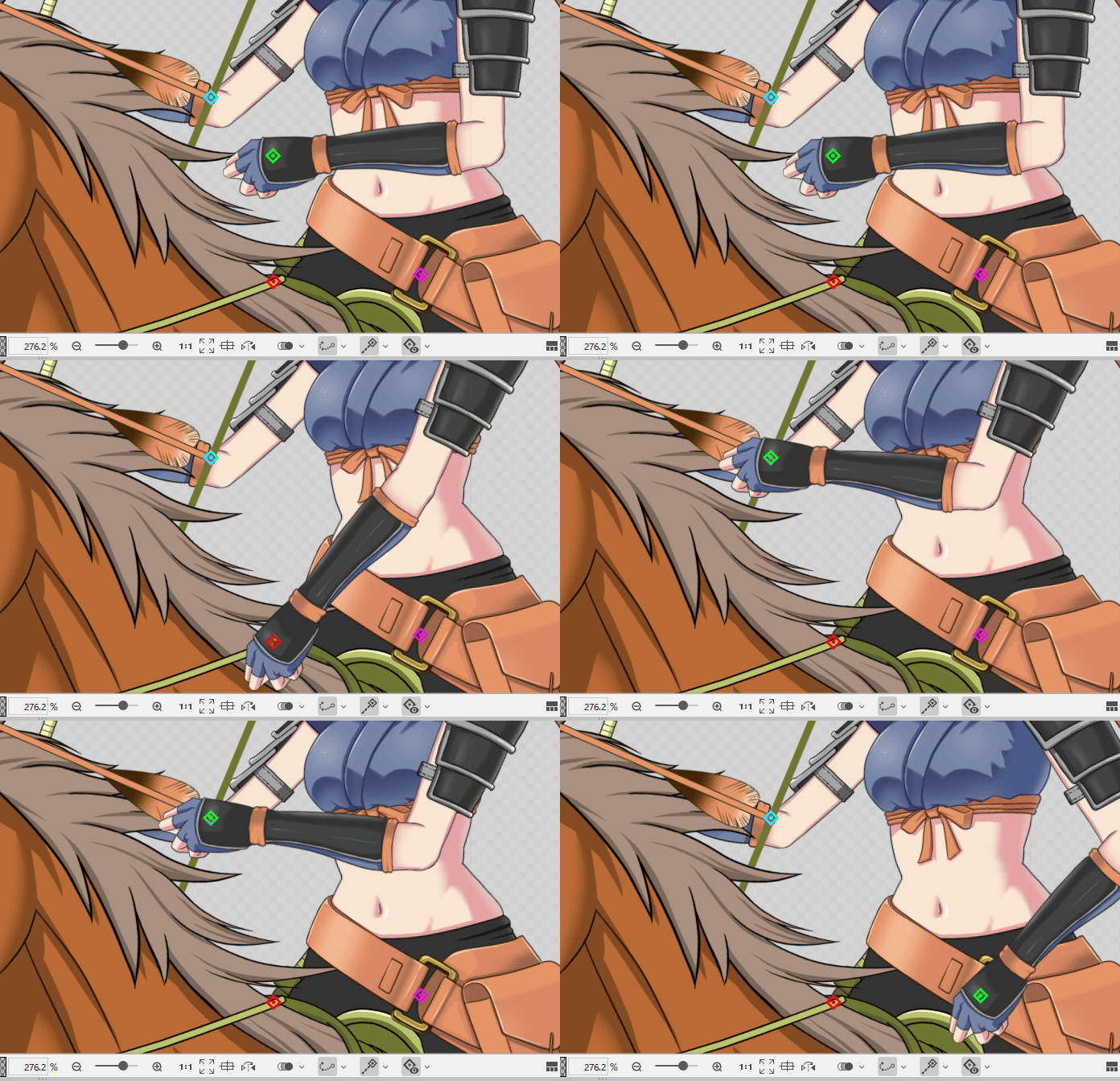
Thus, target tracking allows for flexible motion creation and reduced rework in modeling.
Making the motion of walking
To place the legs on the ground, you must prepare target ArtMeshes.
In some cases, such as 2D characters, a single target may be used, but quality can be improved by preparing separate target models for the “toe” and “heel.”
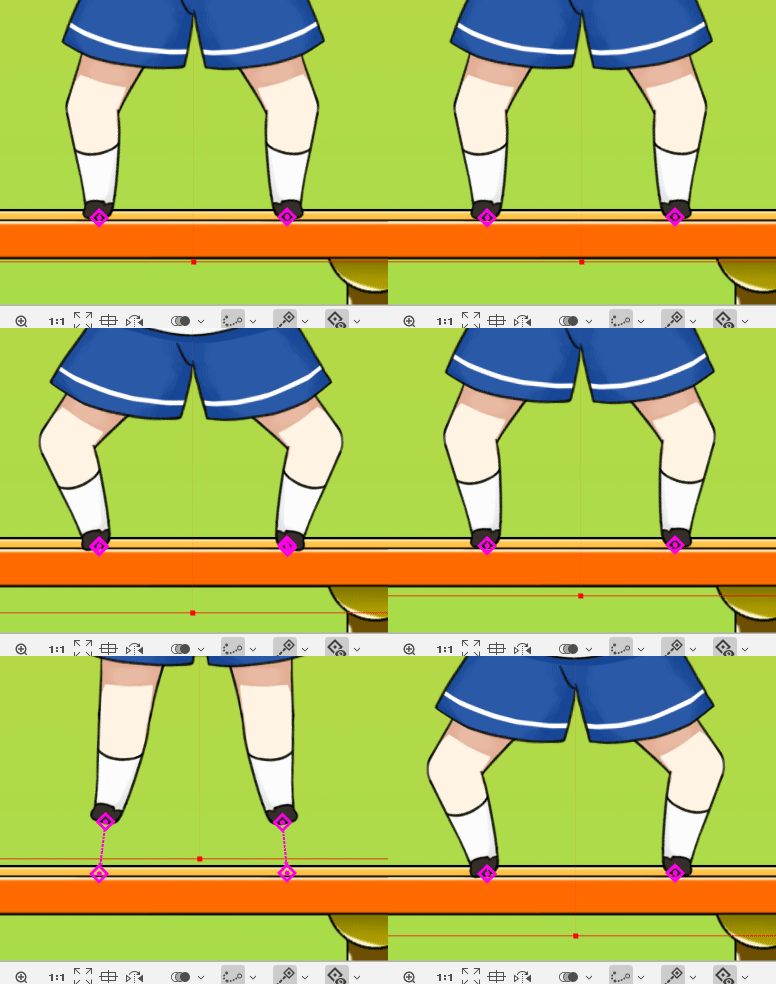
The following target model is structured so you can move it easily with a controller by creating parameters for overall movement, rotation, width adjustment, etc.
The target model can be a simple structure such as a circle, but it should be in a shape that makes it easy to place the controller in the center.
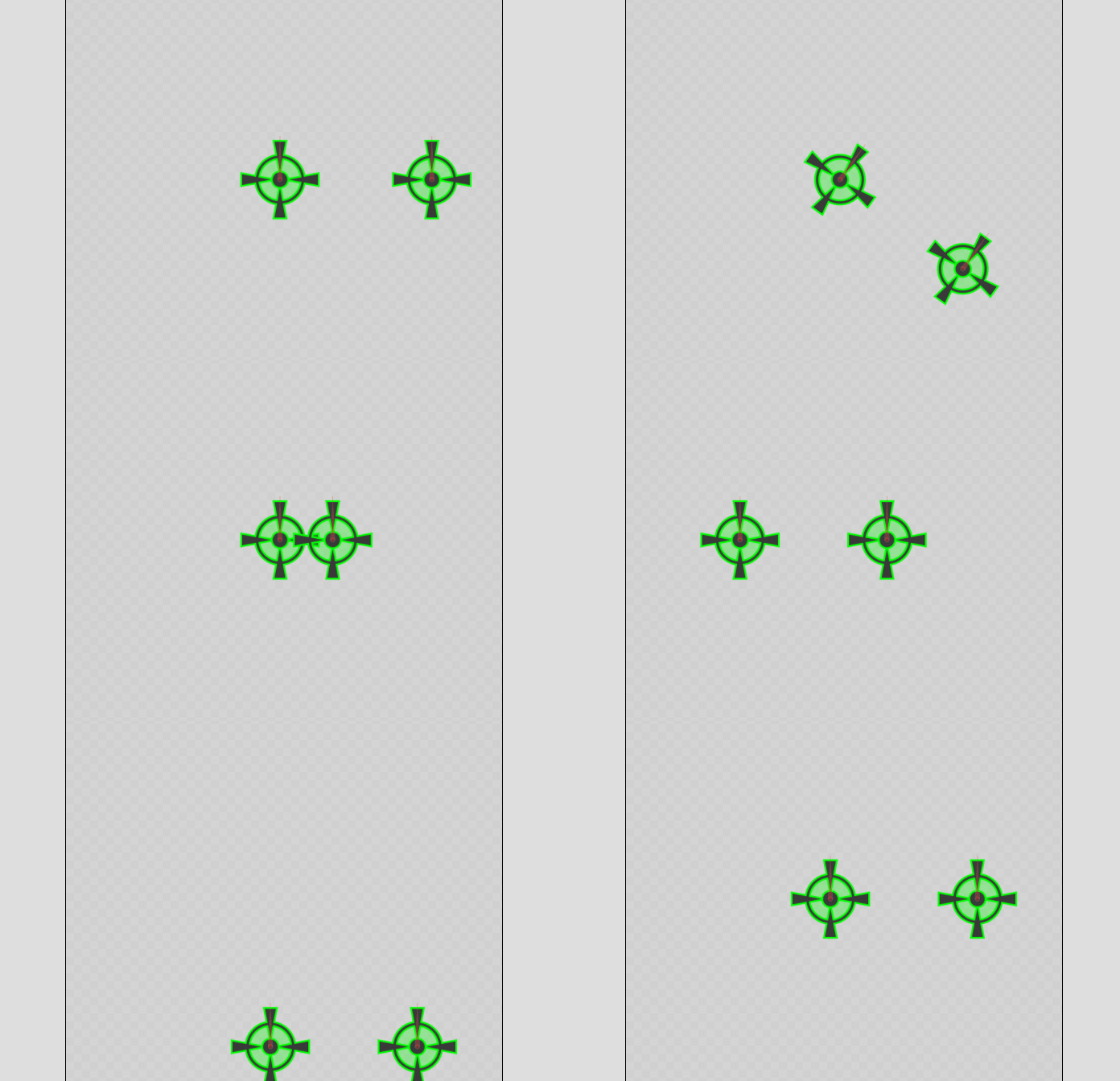
First, load the target models into the animation and align them with the toe and heel.
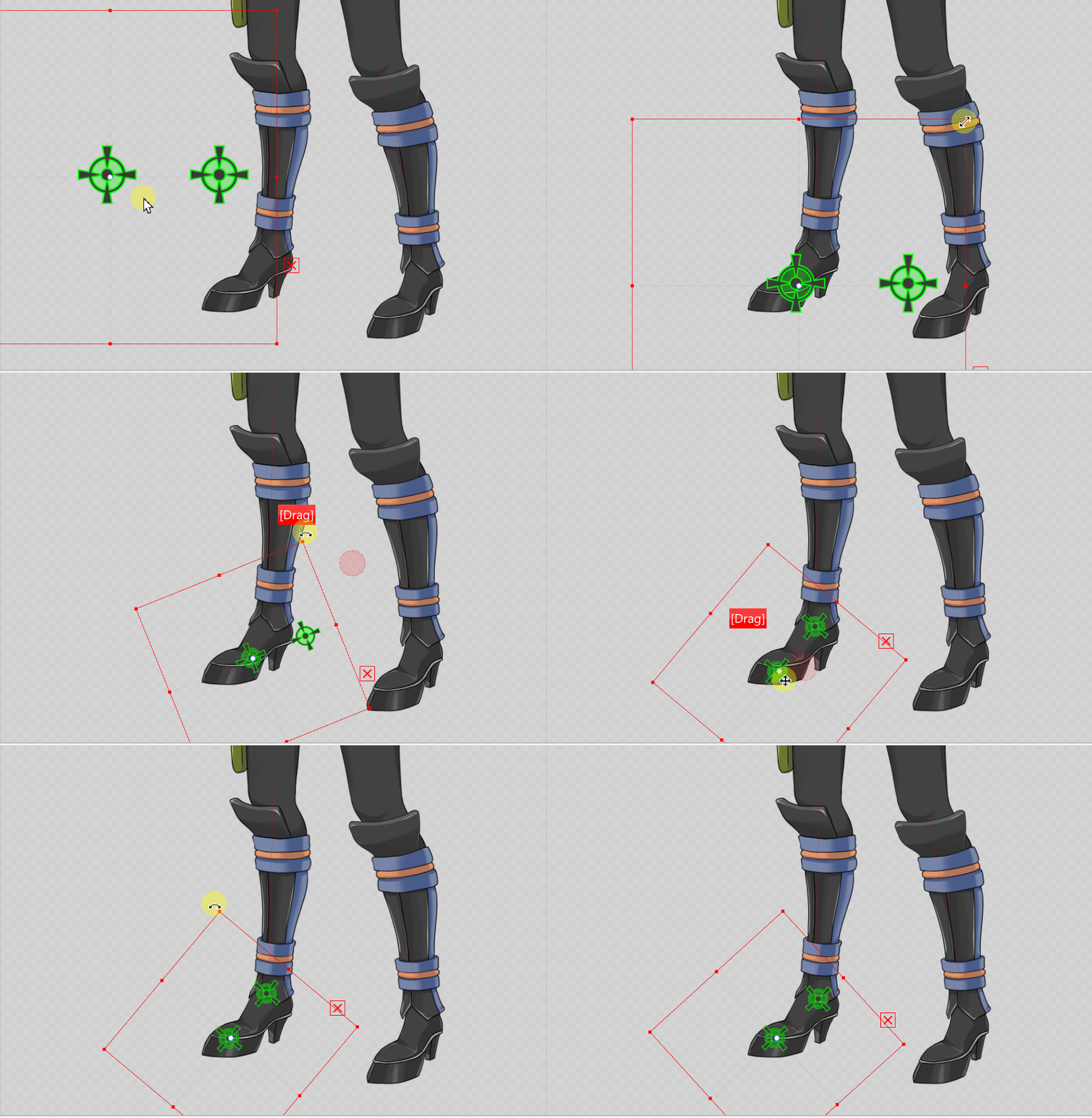
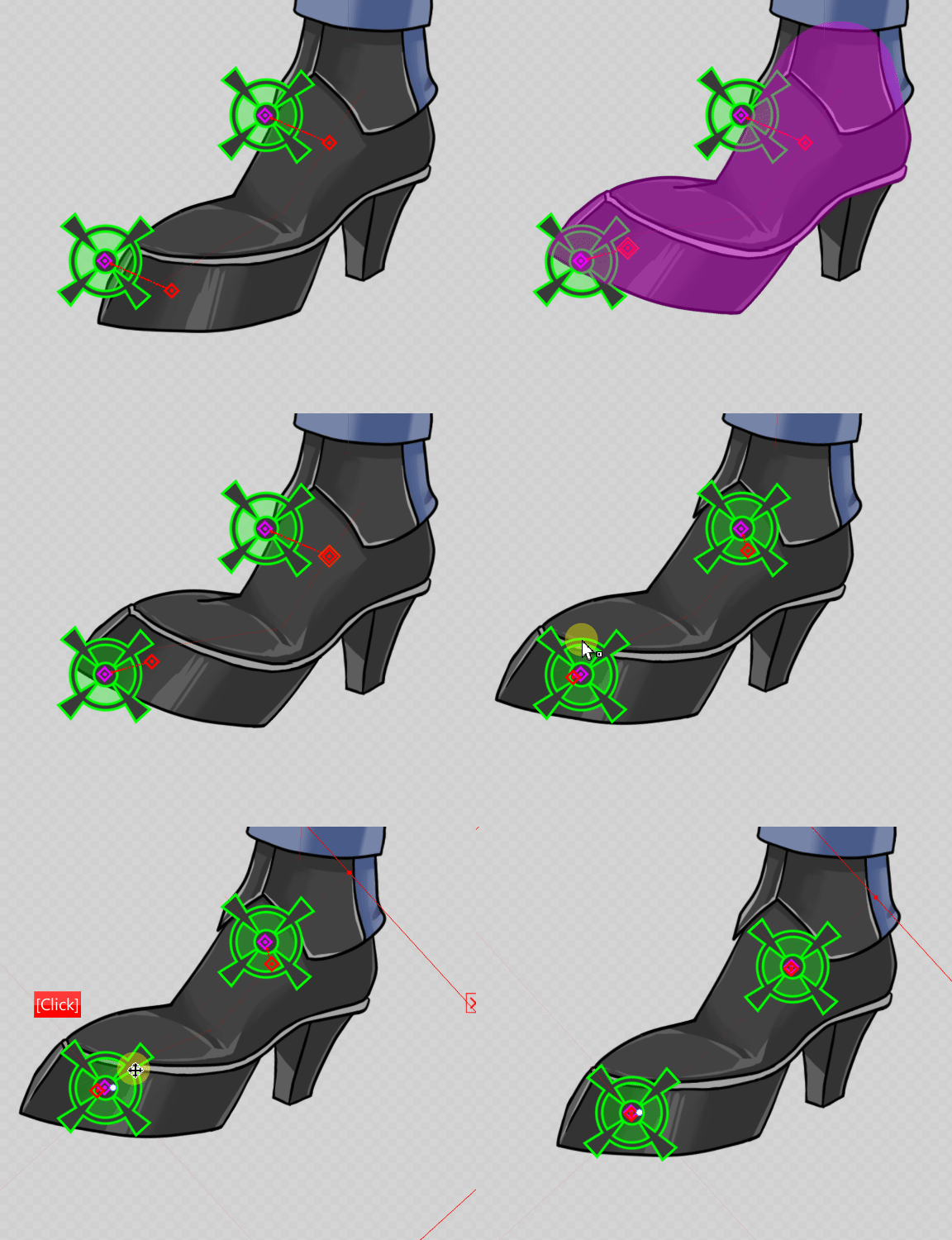
The leg follows the target, and parameters are linked to each controller.
For information on how to perform tracking, see “Controller target settings” for the parameter controller.
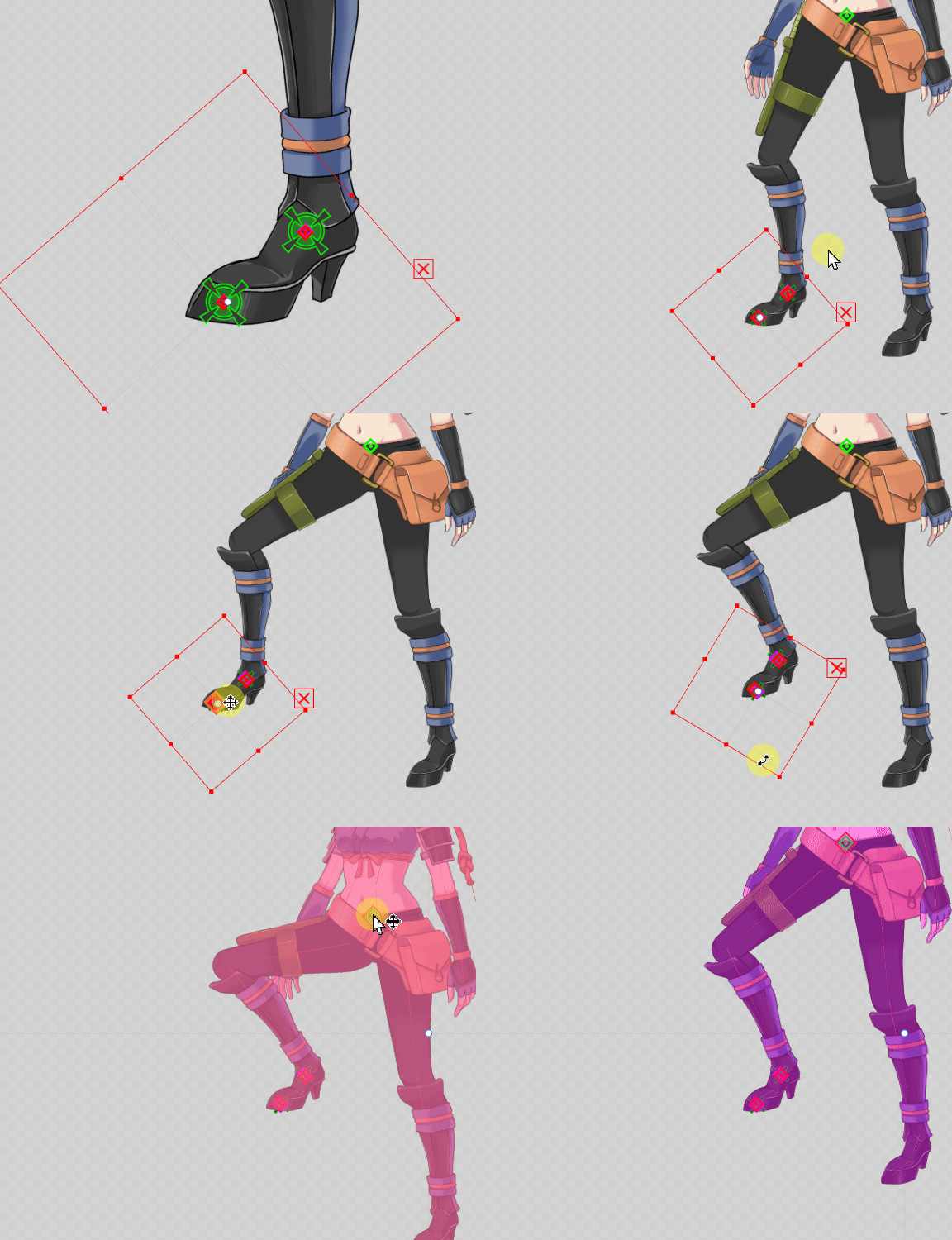
In this way, the entire leg can be moved as the target model track is manipulated.
In addition, movements such as sitting down with the feet on the ground become easier.
TIPS
When the character stands upright, legs are sometimes not computed properly, and knees sometimes do not bend.
In these situations, turn target tracking off once, keep the knees bent, and then turn tracking back on.
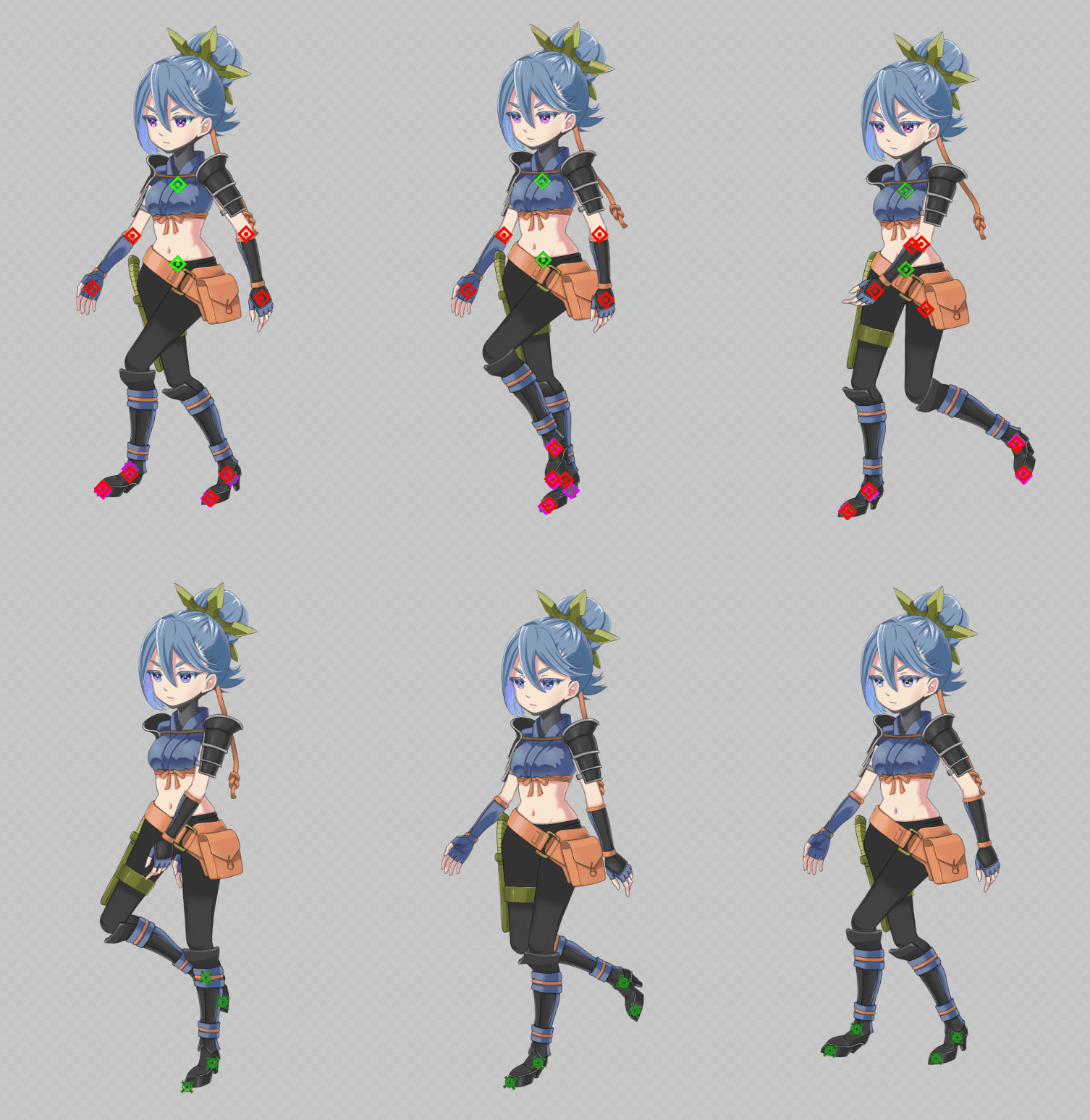
Let’s set targets for the left leg in the same way and create a walking animation.
What to do when the target is out of alignment
After an operation such as [Undo], the positional relationship with the target may be significantly disrupted.
In such cases, moving keyframes in the timeline will update the timeline and return it to the normal state.