








How to Export
Updated: 06/25/2026
This page describes each possible format for exporting videos and still images created in a project.
Export settings
You can export from “Export” in the upper right corner of the screen.
Please follow the steps below.
- Click the “Export” button in the upper right corner of the screen.
- Set the export format, export range, and video seek method as required.
- Click “Export” to begin exporting.
Video Format
| MP4 | Export videos in MP4 format. |
| WebM | Export videos in WebM format. *Transparent WebM exporting is currently not supported. |
| WebP | Export videos in animated WebP format. This format may not be able to export correctly if the width, height, or scale is too large. *Transparent WebP exporting is currently not supported. |
| GIF | Export videos in GIF format. |
| PNG (sequential number) | Export each frame of the video sequentially as an image file in PNG format. |
| PNG (current frame) | Export the current scene displayed on the editing screen as an image file in PNG format. |
| WAV | You can export audio as a WAV file (.wav). Since it is uncompressed, the file size will be larger compared to the M4A format, but audio quality degradation is minimal, making it ideal for saving high-quality audio. Common use cases include music production and backup/archival storage of audio tracks. |
| M4A (Audio Only) | You can export audio as a compressed audio file (.m4a). The file size can be smaller than the WAV format, making it suitable when you want to reduce storage usage. However, since some audio data is reduced during compression, audio quality may change slightly. Common use cases include music playback and saving files to smartphones or PCs. |
About the export range
When exporting, you can choose to export either the entire project or only a portion of it.
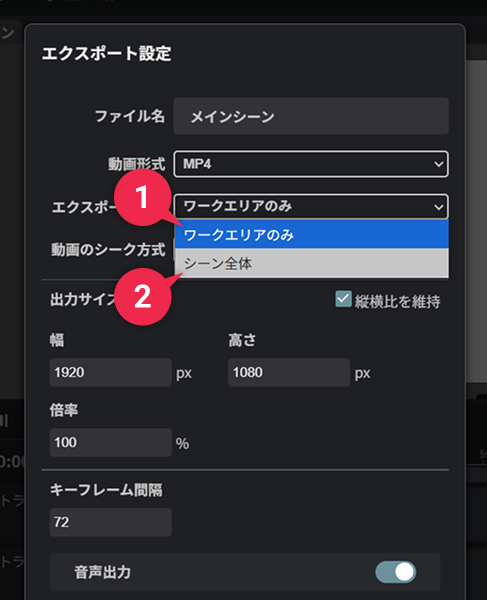
| ➊ | Work area only | Export only the range of work areas specified on the timeline. |
| ➋ | Entire scene | Export the timeline scale of the entire scene. Use when you need to export the entire scene regardless of the work area. |
Video seek method
This setting specifies how to load the video from the video layer placed in the project.
| New Method (preview) | This is an improved method for seek quality and speed when scrubbing video layers. In the future, the “Video Seek Method” option is planned to be consolidated into this method, and the other choices will be discontinued. ※ This is set as the default method; however, since it is currently in the preview release stage, if export results become unstable, please select another method. We also ask that you report any instability via the contact form. |
| Automatic (high quality) | Switches to speed priority (quality-oriented) if the speed is slow when processing in quality priority. |
| Automatic (normal quality) | Switches to speed priority (speed-oriented) if the speed is slow when processing in quality priority. |
| Automatic (preview quality) | Switches to speed priority (preview quality) if the speed is slow when processing in quality priority. |
| Quality priority | Frame skipping and duplication do not occur, but the speed may be slow depending on the video compression method. |
| Speed priority (normal quality) | Processes at 1x speed. Frame skipping and duplication may occur. |
| Speed priority (preview quality) | Processes at 2x speed. Frame skipping and duplication may occur. |
Important Notes
If you experience stuttering or flickering in the video layer of the exported video, please select “Quality Priority” and try again.
However, when exporting with “Quality Priority,” some video exports may be extremely slow. If there is no flickering or you do not prioritize quality, setting it to “Automatic” or “Speed Priority” can allow for faster export.
Notes on exporting
Exporting video (MP4, WebM) may be limited by the system environment and export settings.
If you cannot export correctly, please check the following points.
- Export size should be set to an even number.
Videos (MP4, WebM) cannot be exported with odd widths and heights. - Recommended browsers are Chrome or Edge.
Chromium-based browsers (Brave, Vivaldi, etc.) can be exported, but are not supported.
MP4 export is not available in Firefox. WebM can be exported.
Video (MP4, WebM) export is not available in Safari. - Chrome’s “Settings” > “System” > “Use hardware acceleration when available” should be enabled for more stable export.
*Although it is usually possible to export even if disabled, problems may occur in some environments. - If the export size is too large, the export may fail.
In particular, it may not be possible to export images that are much larger than 1920×1080.
Exportable size depends on your environment (browser and PC specifications).