








Browser App Permission Settings
Updated: 06/25/2026
nizima ACTION!! may require browser permission settings for certain operations.
If these permissions are not granted, you may experience issues such as failed connections with tracking apps, or failures with operations like copy & paste.
Operations That Require Browser Permission Settings
· Copy & paste (no permission required when using Ctrl+V)
· Connecting with tracking apps such as nizima LIVE or VTube Studio
· Using local fonts (fonts installed on your OS)
· Audio recording during Live2D tracking
If you are unable to perform any of the above operations, please try the appropriate solution based on your situation below.
① If a confirmation popup appears during the above operations
On the first connection, a permission confirmation popup will appear in your browser.
In that case, click “Allow” in the confirmation popup to grant access permission and enable the above operations.
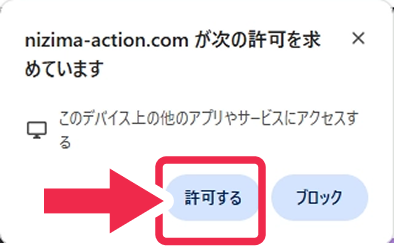
Note
If you selected “Block” or closed the confirmation popup using the X button, the popup will no longer be displayed. In that case, please follow the steps in “② If the confirmation popup does not appear.”
② If the confirmation popup does not appear
If you previously selected “Block” or closed the confirmation popup, please manually grant the permission from your browser settings.
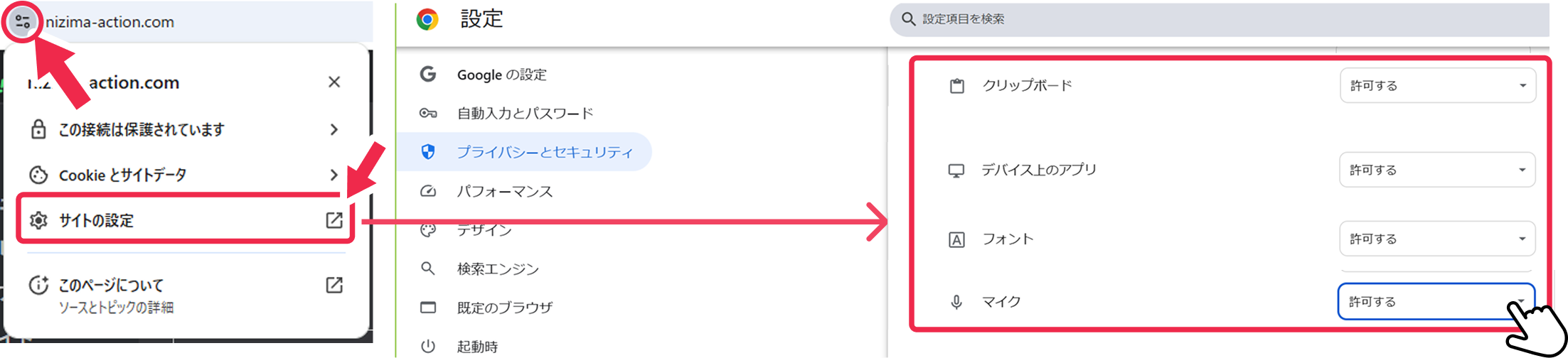
1. Click the site settings icon on the left side of the browser’s address bar.
2. Open “Site Settings.”
3. For each operation, find the following items in the permissions list:
· Copy & paste: “Clipboard”
· Connecting with tracking apps such as nizima LIVE or VTube Studio: “On-device apps”
· Using local fonts: “Fonts”
· Audio recording during Live2D tracking: “Microphone”
4. Change the above settings to “Allow.”
5. Reload the page.
6. Try connecting again in nizima ACTION!!.
【Example】Granting permission for tracking software integration
About the “On-device apps” label
In Chrome 144 and later, this is displayed as “On-device apps.” In earlier versions, it may appear under a different name such as “Local network access.”
③ If the confirmation popup or permission item is not displayed
If the “On-device apps” item does not appear in the site settings, or if the confirmation popup is not displayed, please check the following.
· Please make sure your browser is up to date.
· We recommend using Google Chrome.
· If the “On-device apps” item still does not appear after updating your browser to the latest version, permission may not be required in your browser or environment.
In that case, please confirm that nizima LIVE or VTube Studio is running, and then try connecting again.
Things to Check If the Operation Fails
If you are still unable to connect after granting permissions, please check the following items.
· The “On-device apps” permission is set to “Allow”
· The page has been reloaded after changing the permission settings
· Your browser is up to date
· If using tracking app integration, nizima LIVE or VTube Studio is running
· If using VTube Studio, plugin acceptance is enabled
For detailed instructions on how to connect with tracking apps, please refer to the tutorial below.
Tutorial: How to Use the Live2D Tracking Feature (nizima LIVE)
https://docs.live2d.com/nizimaaction/en/tutorials/nizimalive-manual/