








Subtitles and Text-to-speech(TTS)
Updated: 06/25/2026
The subtitle and text-to-speech(TTS) feature allows you to easily add subtitles and voice narration.
It can be used for a wide variety of purposes, such as narration videos and tutorial videos.
Table of Contents
Basic Operations of Subtitles & Text-to-speech(TTS)
Subtitles & Text-to-Speech can be accessed from “Subtitles/TTS” in the sidebar.
When opened, the palette displays subtitle presets, a subtitle list, a button to create subtitles, and more.
Here, you can create and edit subtitles, generate speech, and manage presets.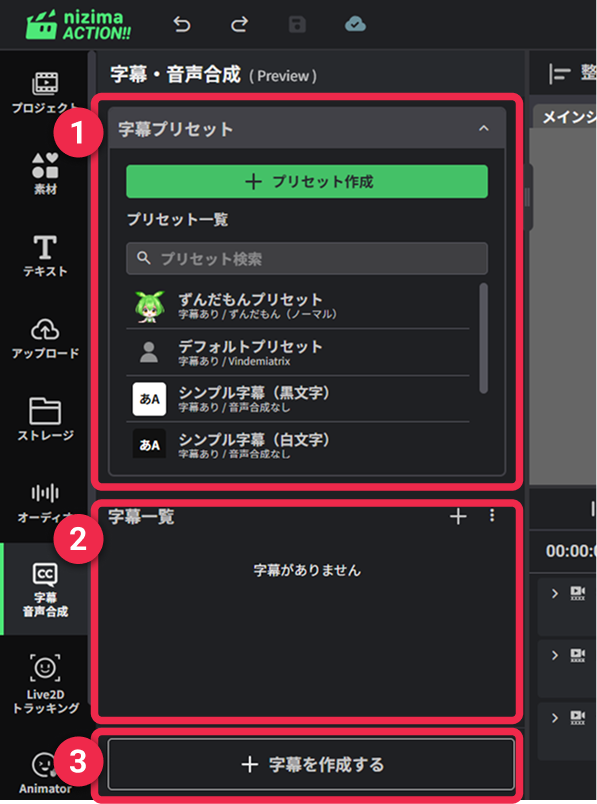
| ➊ | Subtitle Presets | You can create subtitle presets and manage previously created presets. By saving your customized subtitle designs and audio settings as presets, you can easily reuse the same settings. |
| ➋ | Subtitle List | Displays a list of subtitles created in the current project. Text entered in the input field is reflected in real time on the subtitle displayed on the canvas. If you are using a preset with text-to-speech configured, you can generate audio from the entered text by clicking the generate button (  ) on the right. ) on the right. |
| ➌ | Create Subtitle | Allows you to add a new subtitle. The subtitle will be added to the subtitle list in the palette and placed as a layer on the timeline. |
Creating and Editing Subtitles
Adding a Subtitle
To add a new subtitle, click the “+” button on the right side of the subtitle list, or click the “Add Subtitle” button at the bottom of the palette.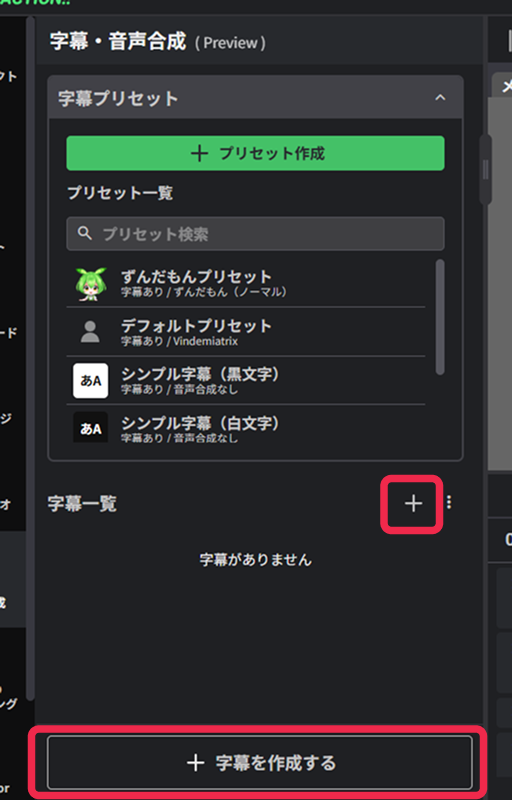 When a subtitle is created, it is added to the subtitle list and a subtitle layer is placed on the timeline.
Entering Text into a Subtitle
Enter text in the input field in the subtitle list, then click outside the field to reflect the changes in the subtitle on the canvas.
The currently selected or active subtitle is highlighted with a green border, allowing you to confirm which subtitle is being edited.
Selecting Multiple Subtitles
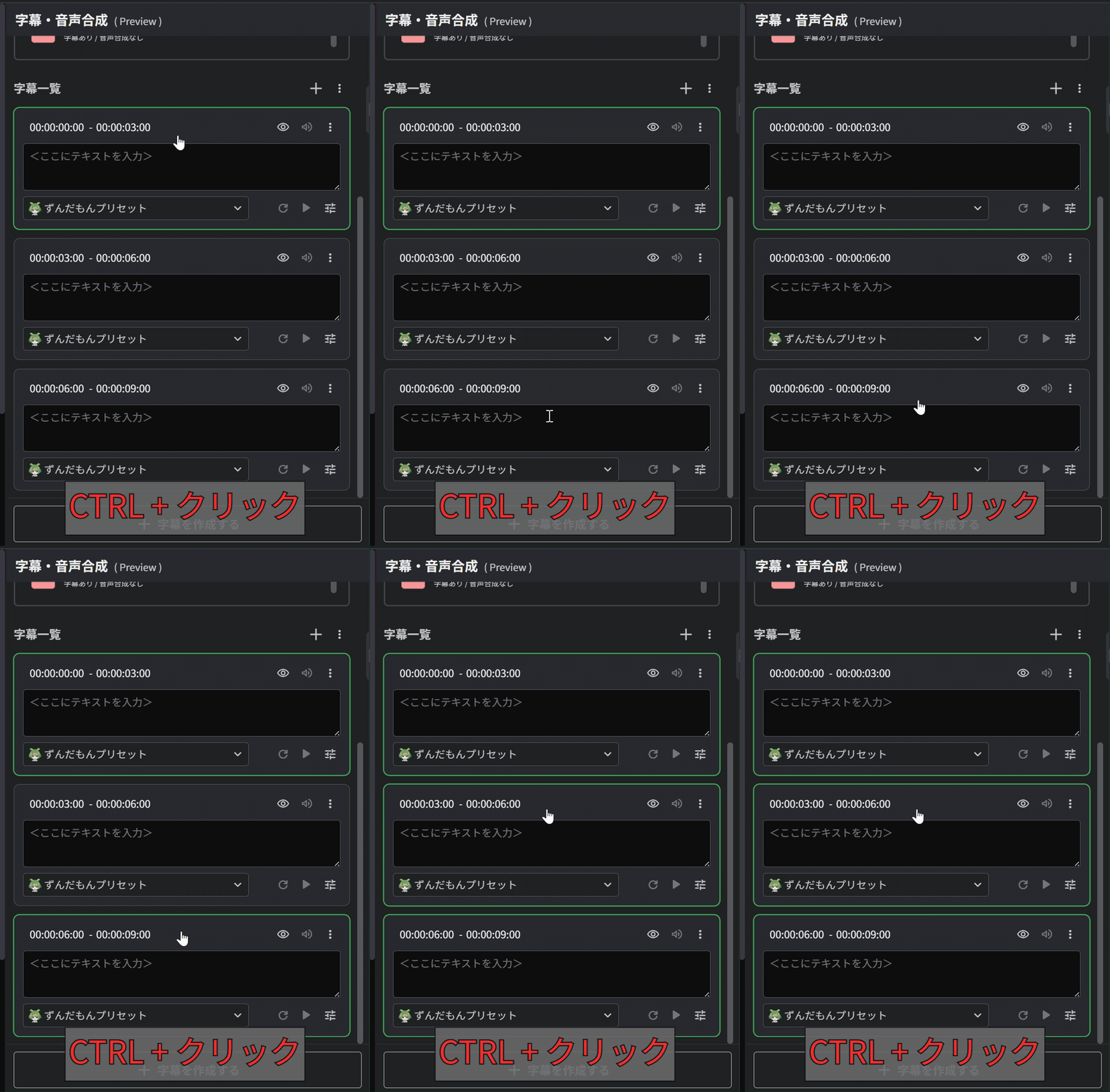
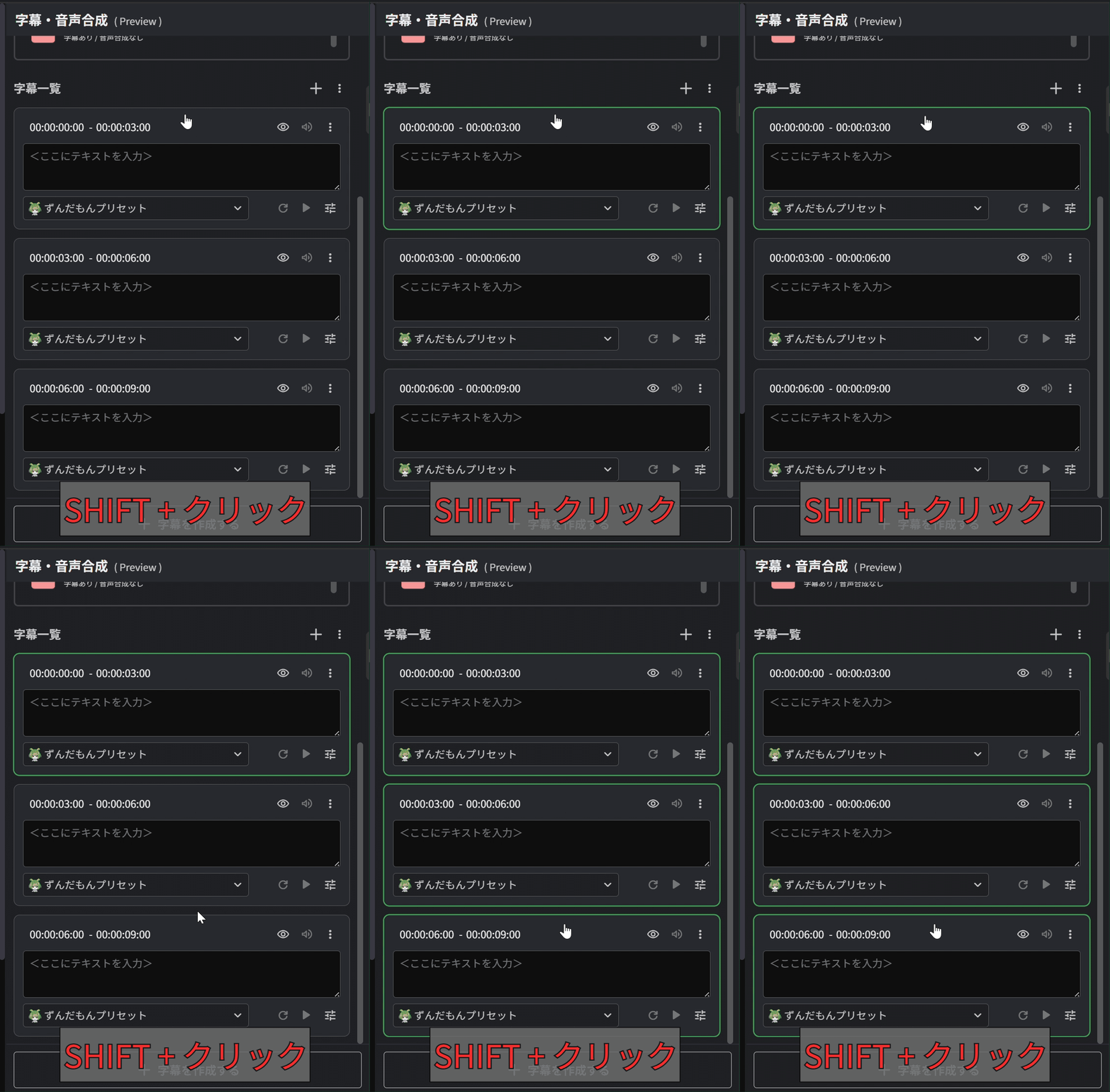
When multiple subtitles have been added, you can add to your selection or select a range using Ctrl+Click or Shift+Click.
・Ctrl+Click: Allows you to select subtitles one at a time.
・Shift+Click: Allows you to select multiple subtitles at once.
Deleting Multiple Subtitles
With multiple subtitles selected, press the Backspace key or Delete key to delete them.
You can also delete subtitles from the “︙” more options menu located in the upper right corner of each subtitle.
If you press the Backspace key or Delete key while editing the text of a subtitle, the subtitle itself will not be deleted;
only the text currently being edited will be affected.
Importing and Exporting SRT Files
You can use SRT files (extension: .srt), which are widely used as subtitle definition files for videos.
SRT files can be imported and exported from the “︙” menu on the right side of the subtitle list.
Imported subtitles can be edited just like regular subtitles. You can modify text content, adjust display timing, apply presets, and generate speech.
Make any necessary edits and adjust them to fit your project.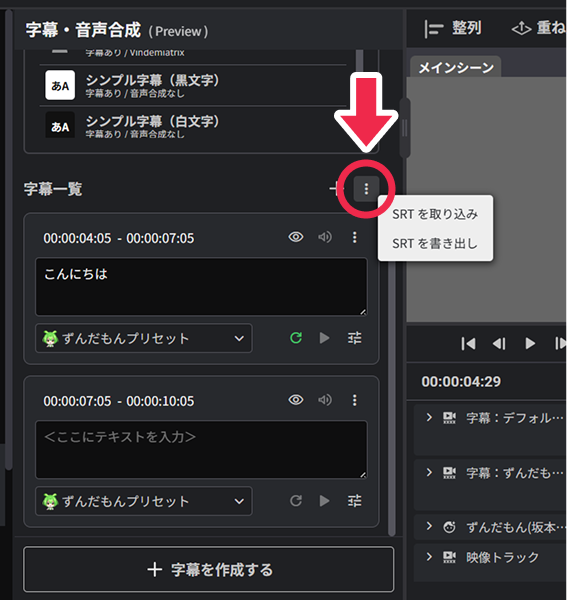
Features of the Subtitle List
The subtitle list offers a variety of operations in addition to text input.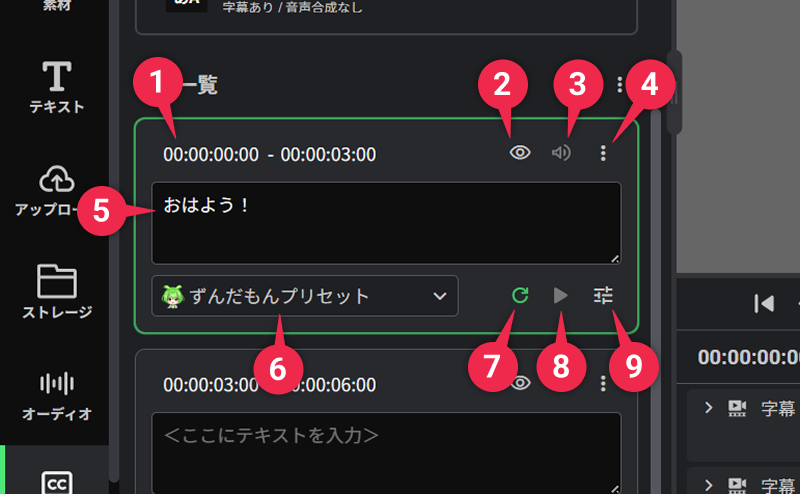
| ➊ | Subtitle Display Time | You can check the start and end times when the subtitle is displayed. |
| ➋ | Show/Hide Subtitle | You can toggle the visibility of a subtitle. Hidden subtitles will no longer be displayed on the canvas. |
| ➌ | Audio On/Off | You can toggle the playback state of the synthesized audio. When turned off, the audio will not play during video playback. |
| ➍ | Other Menu | Provides various operations related to subtitles, such as adding or deleting subtitles. • Add Before: Creates a new subtitle before the selected subtitle. • Add After: Creates a new subtitle after the selected subtitle. • Delete Subtitle: Deletes the selected subtitle. |
| ➎ | Subtitle Input Field | Enter the text to be displayed as a subtitle. Enter text and click outside the field to reflect the changes on the canvas. If you are using a preset with text-to-speech configured, you can generate audio by pressing “Ctrl + Enter” while typing in the subtitle input field. |
| ➏ | Preset Selection | Select a preset to apply to the subtitle. You can switch subtitle designs and voice settings with a single click. You can also create a new preset by clicking the “+ Create New Preset” button at the bottom. |
| ➐ | Text-to-Speech | Click the generate button to generate audio from the entered text. Text-to-speech can also be triggered by pressing “Ctrl + Enter” in the subtitle input field. Note : If you change the text, press the generate button again to regenerate the audio with the updated text. |
| ➑ | Audio Playback | Play back the generated audio to review it. |
| ➒ | Audio Editing | Opens the detailed settings for text-to-speech. You can fine-tune settings such as speech speed, pitch, and intonation. |
Creating and Managing Subtitle Presets
Creating a Preset
You can save subtitle designs and voice settings to create your own original subtitle presets.
To create a preset, click the “+ Create Preset” button in the Subtitles & Text-to-Speech palette.
Clicking it will open the preset creation dialog.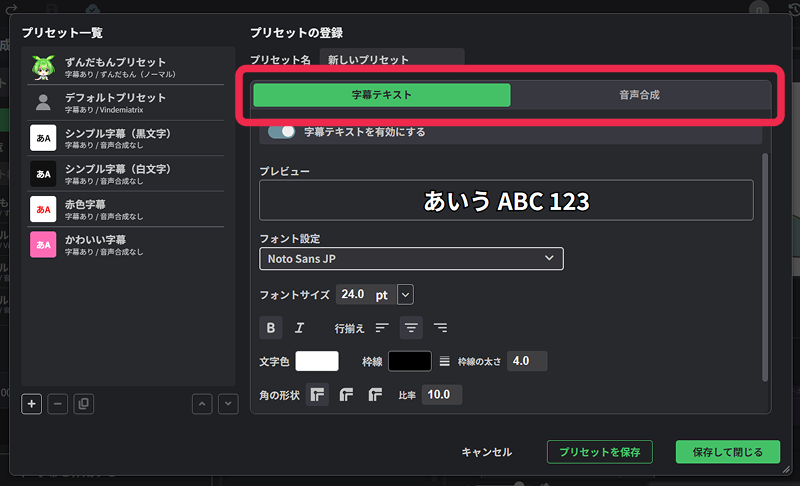 In the dialog, you can configure settings by switching between two tabs: “Subtitle Text” and “Text-to-Speech”.
Subtitle Text
The “Subtitle Text” tab allows you to configure settings related to subtitle design.
You can customize the appearance of subtitles by setting the font, text size, text color, border, subtitle position, and more.
You can also adjust settings while checking the preview, allowing you to edit while confirming the final look.
Turning off “Enable Subtitle Text” allows you to save the preset without subtitle display settings.
Text-to-Speech
The “Text-to-Speech” tab allows you to configure settings related to voice narration.
You can select a voice engine from VOICEVOX or GoogleTTS, and configure the character and speaking style.
You can also preview the narration audio while making adjustments.
* VOICEVOX doesn’t support English.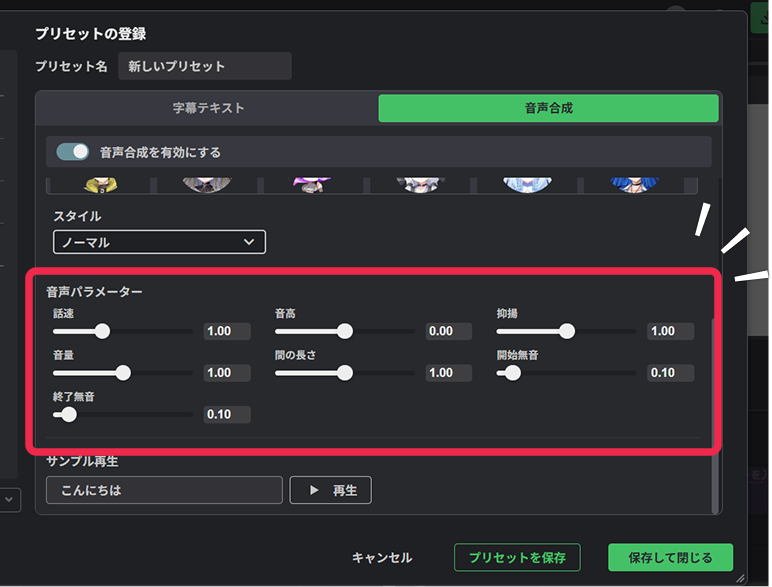
In the voice parameters, you can also make fine adjustments such as speech speed and intonation.
Turning off “Enable Text-to-Speech” allows you to save the preset without voice settings.
Saving a Preset
Once you have finished configuring the settings, click the “Save Preset” or “Save and Close” button to save the preset.
The created preset will be added to the preset list and can be applied to other subtitles as well.
* You cannot save a preset if both “Subtitle Text” and “Text-to-Speech” are disabled.
Text-to-Speech and Audio Editing
Generating Speech Audio
If you are using a preset with text-to-speech configured, you can generate audio from the entered text.
There are two ways to generate audio:
- Click the generate button in the subtitle list.
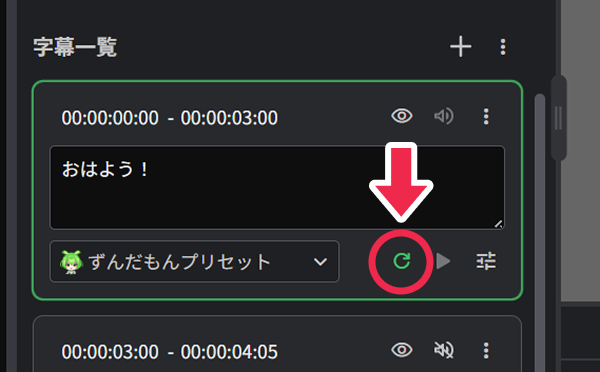
- Press “Ctrl + Enter” while entering text in the subtitle input field.
The generated audio can be previewed immediately using the play button.
If you change the text, press the generate button again to regenerate the audio with the latest content.
Audio Editing
Clicking the audio edit button in the subtitle list will open the audio editing dialog.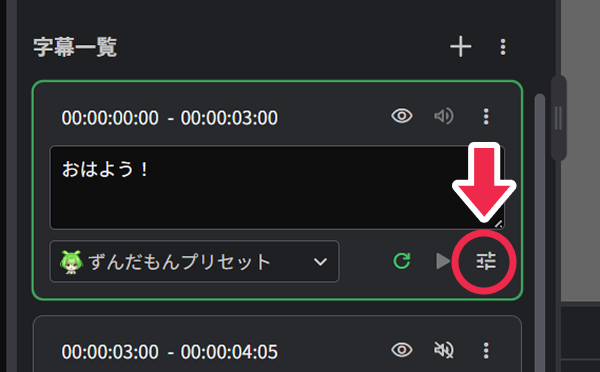
In audio editing, you can make detailed adjustments to the narration audio, such as accent, intonation, and duration.
You can also directly edit the text to be displayed as a subtitle from the text input field in the dialog.
Each adjustment item such as accent, intonation, and speech speed follows the same specifications as the standard VOICEVOX.
For more details, please refer to the usage guide on the official VOICEVOX website.
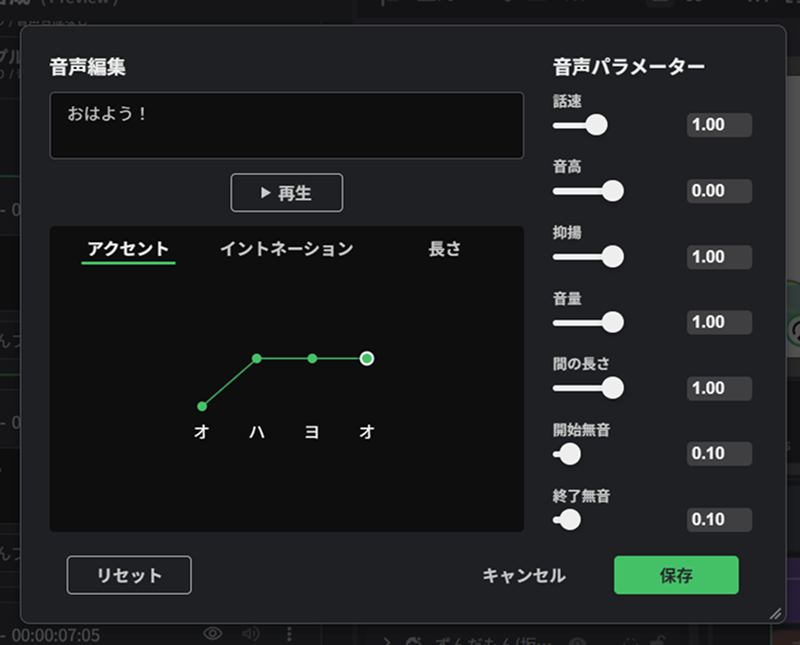
Accent
In the accent editor, you can adjust the accent position within words.
You can also split or merge words and correct their pronunciation.
Intonation
You can adjust the overall pitch variation of the audio.
Duration
You can adjust the length of each character or pronunciation.
Voice Parameters
The “Voice Parameters” on the right allows you to adjust settings related to the overall narration.