







Video and Audio Settings
Updated: 06/17/2026
Based on the audio layer, you can display the BPM grid, perform tempo analysis, and adjust the pitch and playback speed.
Select “Audio” from the sidebar to configure settings from the displayed palette.
About BPM Grid
From the palette, you can display and configure the grid, and automatically analyze the tempo (BPM) of music.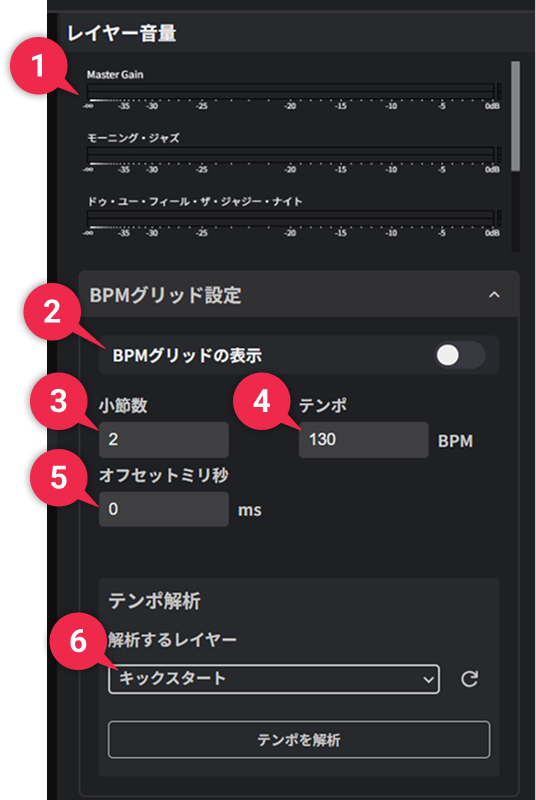
| ➊ | Layer Volume | You can check the overall project volume (Master Gain) and the volume of each individual audio layer. ※The volume of individual audio layers is displayed when you preview and play the scene. |
| ➋ | BPM Grid Display | When turned on, grid lines appear on the timeline based on the set tempo. |
| ➌ | Number of Bars | You can set the number of beats per bar. |
| ➍ | Tempo | You can specify the tempo(BPM) of the track. |
| ➎ | Offset Milliseconds | If you want to shift the starting position of the grid, you can adjust the display position in millisecond units. |
| ➏ | Layers to Analyze | Select the target audio layer in “Layers to Analyze” and click the “Analyze Tempo” button to perform analysis. |
Tempo (BPM) Automatic Analysis
The tempo of the track can be automatically detected from the audio layer, and reflected in settings like “Tempo” and “Offset Milliseconds”.
Please follow the steps below:
- From the “Layers to Analyze” in the palette, select the target audio layer.
Clicking the round arrow icon on the right side of the “Layers to Analyze” section will reset the selection state and analyzed tempo to the initial state.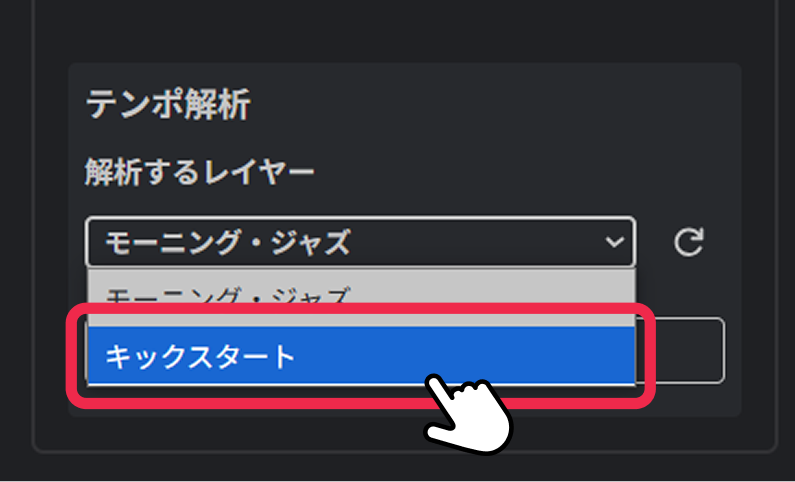
- Click the “Analyze Tempo” button to automatically detect BPM and display the analysis results.
By clicking the “Apply” button, the values are reflected in the tempo and other settings above.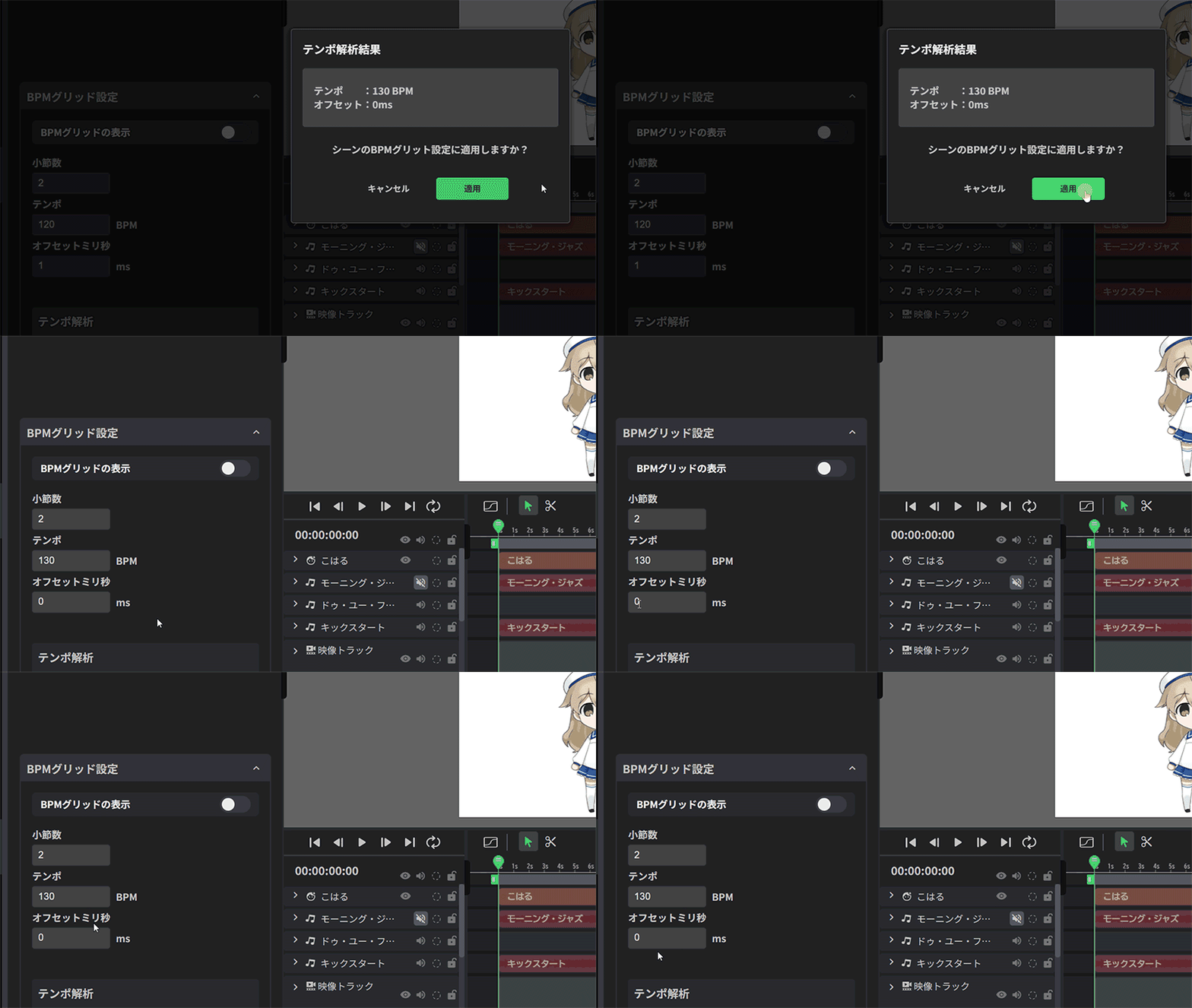
Pitch Adjustment
You can adjust the pitch of imported audio, music, and other sound files.
By changing the value, you can raise or lower the audio pitch and change the overall atmosphere.
【How to Set】
- With a layer selected, you can configure it from the “Pitch” item in the “Video/Audio Settings” displayed in the palette on the right side.
You can also change the pitch freely by adding keyframes.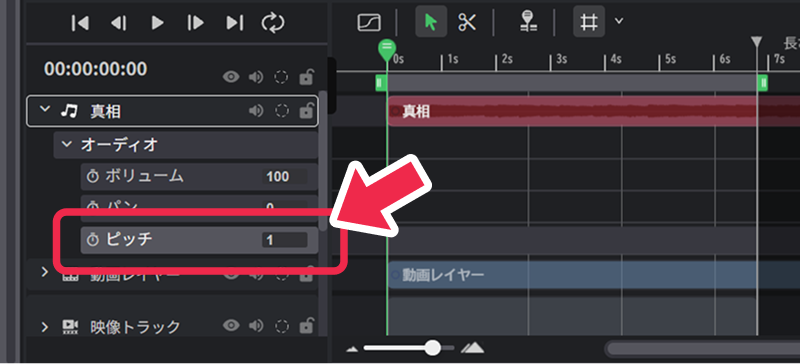
- Select the target layer in the layer list on the timeline and configure it from the “Pitch” item in the properties.

Auto Pitch Adjustment
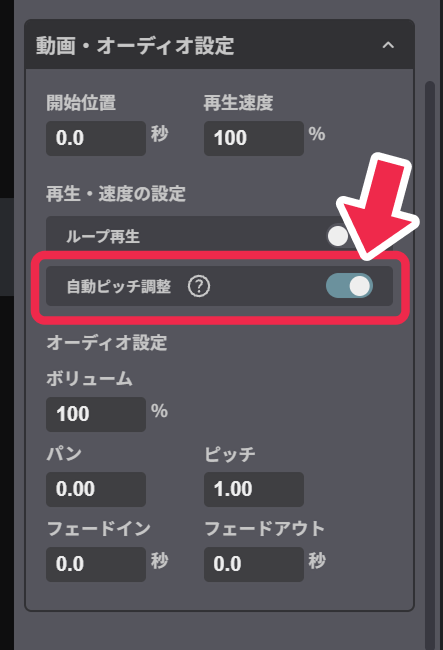
When you turn on “Auto Pitch Adjustment”, changing the playback speed will not affect the pitch, maintaining natural-sounding audio.
When you turn off “Auto Pitch Adjustment”, the pitch will change according to the playback speed adjustment, allowing you to create audio with fast-forward or slow-motion effects.
This feature is convenient when you want to speed up background music or adjust recorded audio to match the duration of your video.
【How to Set】
- With a layer selected, turn on Auto Pitch Adjustment in the “Video/Audio Settings” displayed in the palette on the right side.
Reverse Playback
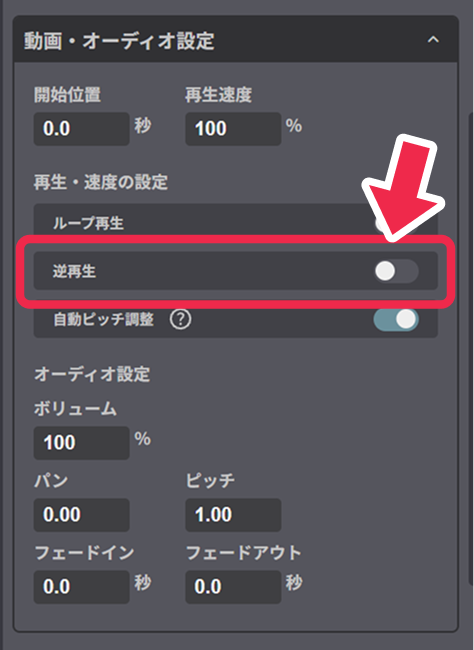
When Reverse Playback is turned on, audio and music will play from the end to the beginning.
This can be used for sound effects, production purposes, or when you want to create special sound expressions.
[How to set]
With the layer selected, turn on “Reverse Playback” under “Video/Audio Settings” displayed in the palette on the left.