








Layers
Updated: 05/24/2026
Selecting an object in the Layer List or on the Canvas opens the Layer Palette.
How to Create a New Layer
You can create a new layer by right-clicking on the Canvas, Layer List, or Timeline, and selecting “New layer ▶” from the menu that appears.
All Layers – Common Settings
Layer Name
You can assign a name to the layer.
Basic Settings
| Start | You can set the starting time of the layer. |
| Duration | You can set the duration of the layer. |
| Align Range to Parent | When turned on, the playback duration of the layer is aligned to the playback duration of the project. |
| Opacity | You can adjust the opacity of the layer. |
| Group Render Mode | You can set the rendering mode of the group (Fast, Normal, or Pass-Through). Note: This option is displayed only when a group is selected. |
| Blend Mode | You can set the blend mode for the laYou can set the blend mode for the layer. |
| Clip to Layer Below | When turned on, the opaque areas of the layer directly below the selected layer or group are used as a mask. |
| Clipping Mask | Clipping can be applied by specifying a shape layer. |
Effects and Animation Effects
Click the “Edit Effects” or “Edit Animation Effects” buttons to open each lists.
Effects can add visual or motion effects to a layer, and multiple effects can be applied to a single layer.
Animation effects can be set for each timing: Start, Loop, and End.
Multiple animation effects can be applied to each timing.
Note: These settings cannot be applied to audio layers.
For more details, see the Effects and Animation Effects page.
Video and Audio Layers – Common Settings
Video and Audio Settings
| Start Position | You can specify the playback start position of the layer. |
| Playback Speed | Higher values result in faster playback. |
| Loop Playback | When enabled, video or audio playback will repeat. |
| Auto Pitch Correction | When enabled, you can change the playback speed without altering the pitch. |
| Volume | You can set the volume of the selected layer. |
| Pan | Moves the sound position (the direction from which the sound is heard) to the left or right. |
| Pitch | You can adjust the pitch of music, voice, and other audio. |
| Fade In | Gradually increases the volume of the layer. |
| Fade Out | Gradually decreases the volume of the layer. |
Live2D Layer
Live2D layers are used to place Live2D models in a scene and apply expressions and motions.
For more details, see the Live2D Layer page.
Live2D Action Frames
A Live2D action frame lets you place a scene from nizima ACTION!! into a Live2D model animated in Live2D Cubism Editor.
Target Scene
This setting allows you to incorporate a specified scene into a Live2D action frame layer.
You can display a selected scene within a specific frame and create expressions combined with effects and backgrounds.
- For usage instructions, see How to Use Live2D Action Frames.
- For creation instructions, see How to Make Live2D Action Frames.
Group Layer
You can select how layers within a group are rendered.
The range affected by effects and other processing differs depending on the selected rendering method.
For more details, see the Group page.
Pattern Layer
This layer type is used to generate repeating patterns and background designs.
To create a pattern layer, select “New Layer ▶” from the right-click menu and choose Pattern.
For more details, see the Pattern Layer page.
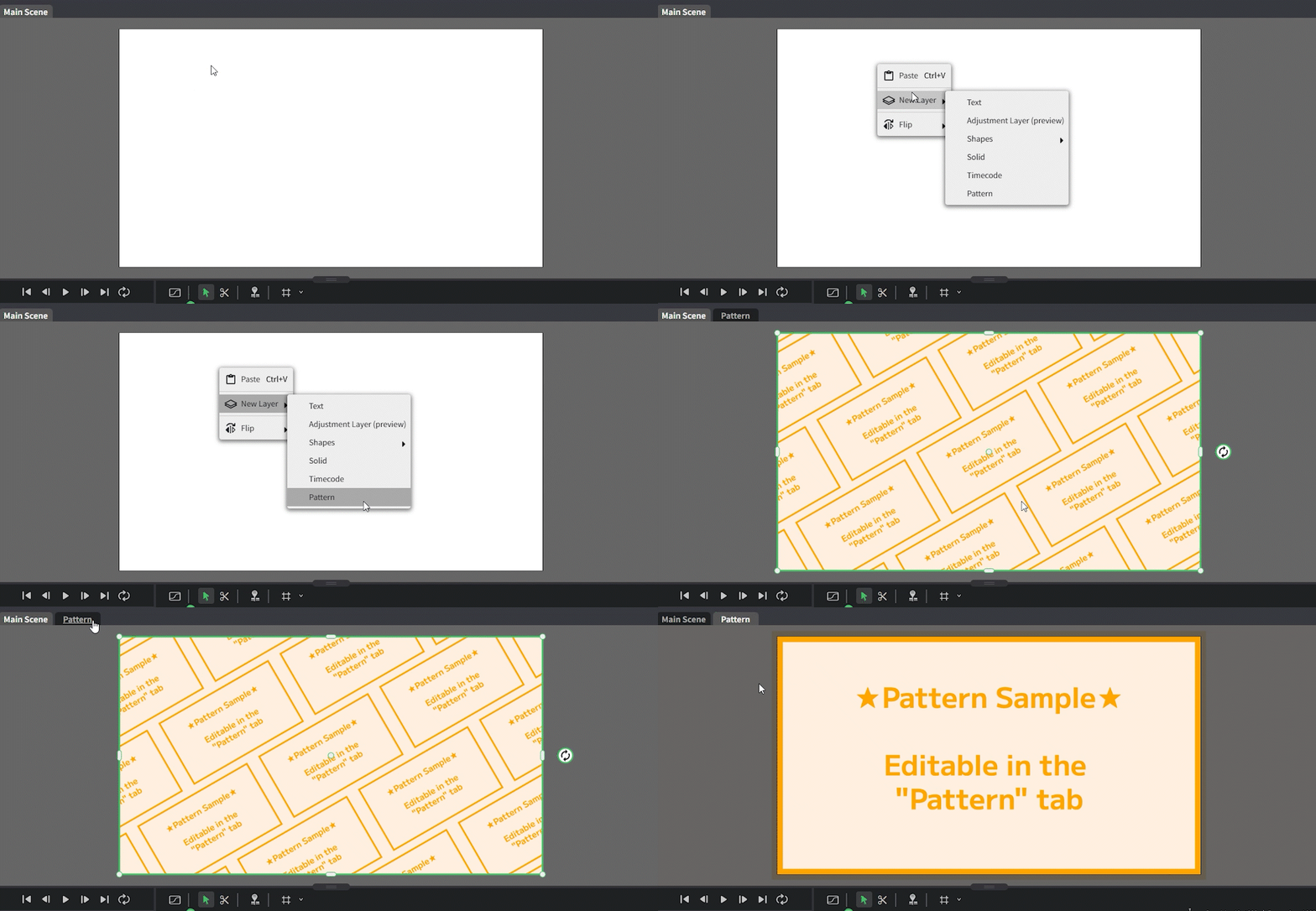
When a pattern layer is created, a “Pattern” tab is added to the Canvas.
Switch to this tab to edit the layer; changes will be reflected on the Canvas in the main scene.
